


What is Google Pay? How to add credit cards, receive and send money
Google Pay is a new app that combines Android Pay and Google Wallet, allowing users to store various types of cards, including credit cards, debit cards, gift cards, and loyalty cards. It supports NFC payments and is accepted by many stores and financial institutions. Currently, Google is offering a $10 Google Play Store gift card if you use Google Pay for five different days in the upcoming month. Let’s explore how to set up and use Google Pay in the article below!
What is Google Pay?
Google Pay is a mobile payment application provided by Google, allowing users to store and use various types of cards to make payments at physical stores or online. It can be used on Android devices, iOS, and desktops, supporting payments through NFC and other online payment technologies.
Google Pay is a digital wallet linked to your Google account. You can use it to send money to friends (similar to Venmo), make payments in apps for anything, and use it at stores or restaurants with an Android phone or a Wear OS watch. But perhaps the real reason to use Google Pay is that it’s faster and safer than using a physical debit or credit card.
Replacing Android Pay and Google Wallet in 2018, Google Pay works without sending your actual card numbers to stores and restaurants. Essentially, your credit and debit card information is securely stored on Google’s servers, and instead of transmitting your card number, Google Pay uses a token called a virtual account number as a substitute.
See more products: Buy advertising accounts
Setting Up Google Pay
The first thing you need to do is download the Google Pay app. Google Pay is also available on iOS. Once you download the app, the setup process is the same as the Android version.
Step 1: Download the app from the Google Play Store to install it.
Step 2: Open the Google Pay app and tap the “Get Started” button.
Step 3: Next, tap the “Connect to Gmail” button. A window will pop up asking you to allow Google Pay to access your device’s location.
Step 4: Google Pay wants to know your location so it can notify you when you’re at a place that accepts Google Pay or your loyalty cards. To enable location features, tap the blue “Turn On” button at the bottom of the screen.
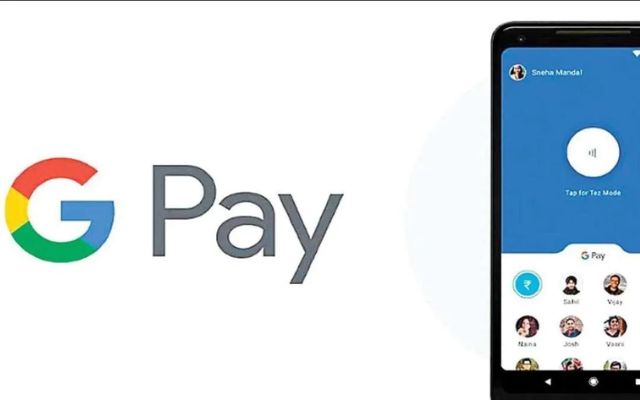
Step 5: At the bottom of the Google Pay app, there are four tabs: Home, Payments, Cards, and Send. Go to the “Payments” tab and then click the “Add Payment Method” button.
You can also start from the “Home” tab. Scroll down to the “Pay with your phone” section in the Store and tap the blue “Set Up” button. If you already have a card in your Google account (perhaps for Google Play or another Google service), the card will be automatically connected to Google Pay on your phone. It’s a bit intimidating, but mostly helpful.
You also have the option to add a new card to your account. To do this, tap “Add New Card,” then hold your card in front of the camera window. After the camera scans your card information, verify the expiration date and CVC number.
Step 6: After you’re done, tap the “Save” button at the bottom of the screen. Read the Terms of Service and tap the “Accept & Continue” button at the bottom.
Step 7: Next, your bank will verify the card, and you will receive a notification stating that your lock screen will be used for Google Pay. Once you understand this, tap the blue “Got It” button at the bottom.
Step 8: Then, you will see the “Card Verification” screen. Choose the method by which you’d like to receive the verification code. Depending on your card, you can receive the code by email or phone number. After selecting, tap the “Continue” button. When you receive the code, enter it in the “Verification Code” field and tap “Submit.”
How to Add a Credit Card
To add a credit or debit card to Google Pay, follow these steps:
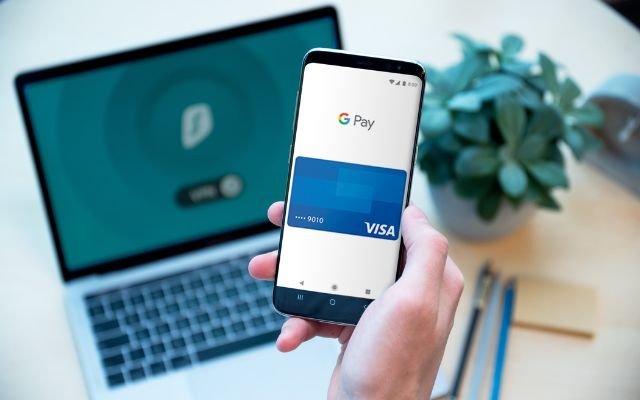
How to Add a Credit Card:
-
Open the Google Pay app on your mobile device.
-
Tap the “Add” (+) icon at the top left of the screen.
-
Tap “Add Credit or Debit Card.”
-
Scan your card’s information using your phone’s integrated camera or manually enter the card details.
-
Verify the card information and continue to complete adding the card.
See more products: Buy advertising accounts
How to Send and Receive Money
But Google Pay isn’t just about using your phone instead of a plastic card. You can send and request money with friends and family, just like you can with Venmo and Zelle.
-
To send money, open the Google Pay app.
-
Tap the “Send” or “Request Money” button.
-
From there, select a contact to send money to or request money from.
-
If the person you’re sending or requesting from isn’t in your contacts, enter their phone number or email.
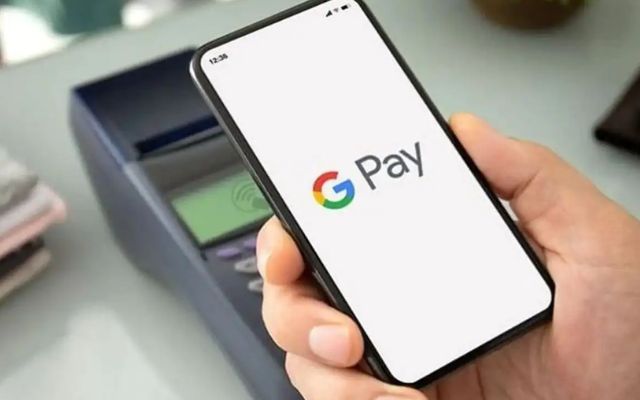
Users can easily pay for any transaction by unlocking their Android phone and placing it near the POS for payment.
-
If the person has Google Pay on their phone, they can share their Google Pay QR code with you (or vice versa).
With Google Pay, you can also send or request money from your browser.
-
Go to pay.google.com and log in.
-
Next, select the “Send” or “Request Money” tab.
-
Tap “Send Money” or “Request Money.”
-
Enter the amount you want to send or request, then enter the phone number, email, or name of the recipient to pull their contact card information.
-
Finally, tap “Send” or “Request.”
This covers useful information about how to set up and use Google Pay. We hope this helps you know how to use the app to send and receive money. Don’t forget to check out other related topics!
If you need the most reputable payment method and advertising account provider, you can message the fanpage buybm365.com-Ads to receive advice from HT Media. In addition, you can follow the articles. Latest articles related to our Digital Marketing.





