


What is Google Maps API? 04 steps to create Google Maps API
Google Maps API is an online mapping technology service provided for free by Google. It offers a variety of benefits for your website. If you want to learn more about this tool, refer to today’s article for detailed information. Let’s explore it together!
General Introduction to Google Maps API
What is Google Maps API?
Google Maps API is a service that integrates online mapping technology on websites completely for free. This service supports many functions of Google, particularly navigation and directions, displaying maps, and suggesting optimal routes for various modes of transport. It also helps users with instructions on how to take public transport like buses, taxis, and train transfers. The feature integrates maps of important places like schools, hospitals, gas stations, banks, and ATMs in the user’s area and globally.
What is Maps API?
Maps API is a method that allows website B to use the mapping service of website A and embed it into its own website. Website A refers to Google Maps, while website B represents personal or organizational websites that want to utilize Google’s services. Features such as mouse-over, zooming in and out on maps, and placing markers on maps are included.
Applications built on Google Maps are embedded into personal websites using JavaScript tags, making it easier to use the Google API.
Currently, Google Maps API has been upgraded to version 3, which is not only compatible with traditional desktops but also mobile devices, applications, and many other utilities.
Some Applications of Google Maps API
Here are some practical applications of Google Maps API:
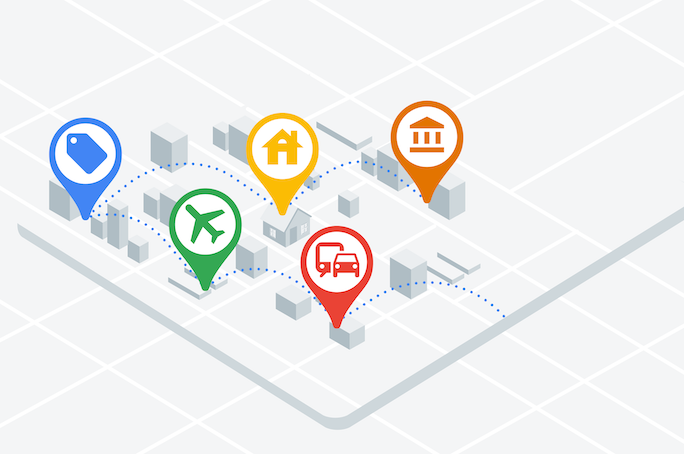
Marking Desired Locations
This feature is used to mark locations on the map with detailed information about those places. Examples include restaurants, hotels, hospitals, schools, ATMs, banks, or any other location the user wants to mark.
Directions to a Desired Location
See more products: Buy advertising accounts
This feature helps users find routes to various destinations. It provides multiple route options and additional data such as time and distance for each route. Users can find routes to marked locations mentioned above.
Zoning Areas
This feature allows users to define specific areas such as economic centers, urban districts, rural areas, etc.
Displaying Traffic Conditions
The traffic status feature informs users about areas with high traffic, helping them avoid congested routes, flooded streets, or incidents in specific areas.
Guide to Creating Google Maps API
Step 1: Create an API Key
To create an API key, follow these instructions:
-
Go to Google APIs Console.
-
Sign in to your personal email account.
Step 2: Navigate to APIs & Auth -> APIs
Step 3: Find and Enable Google Maps JavaScript API
Scroll down and find Google Maps JavaScript API v3, then enable the service by clicking the switch from OFF to ON.
Step 4: Copy the Key and Use It
Click on API Access -> Create new Browser key… A new API key will appear. Copy this key to use it on your website.
Guide to Obtain Longitude and Latitude for Displaying on Google Maps
To get the longitude or latitude to display on the map, you can visit the address bar, then type in the location you need to find. The system will show the longitude and latitude for the specified location.
Display Google Maps on Your Website
To display Google Maps on your website, follow these instructions:
<!DOCTYPE html>
<html>
      <head>
        <!-- Add Google API Key -->
        <script src="https://maps.googleapis.com/maps/api/js?key=#{your_app_key}&sensor=false">
        </script>
        <script>
          //Khoi tao Map
          function initialize() {
            //Khai bao cac thuoc tinh
            var mapProp = {
              //Tam ban do, quy dinh boi kinh do va vi do
              center:new google.maps.LatLng(51.508742, -0.120850),
              //set default zoom cua ban do khi duoc load
              zoom:5,
              //Dinh nghia type
              mapTypeId:google.maps.MapTypeId.ROADMAP
            };
            //Truyen tham so cho cac thuoc tinh Map cho the div chua Map
            var map=new google.maps.Map(document.getElementById("googleMap"), mapProp);
          }
          google.maps.event.addDomListener(window, 'load', initialize);
        </script>
      </head>
      <body>
        <!-- Khai bao the div chua Map -->
        <div id="googleMap" style="width:500px;height:380px;"></div>
      </body>
</html>
Conclusion
This article provided a detailed guide on what Google Maps API is and how to create a Google Maps API in 3 simple steps. We have shared comprehensive information to help you understand and implement this tool effectively. We hope the information provided will be useful to you. During the preparation of this content, there may have been some oversights, so if you have any questions or feedback, please feel free to leave your comments below. Thank you for your attention and support.
If you need the most reputable payment method and advertising account provider, you can message the fanpage buybm365.com-Ads to receive advice from HT Media. In addition, you can follow the articles. Latest articles related to our Digital Marketing.





