


The simplest way to block ads on Facebook and Google Chrome
Do you feel annoyed by the overwhelming number of ads while browsing Facebook on Google Chrome? So how can you completely block these ads and maintain control over the content you truly want to follow? The article below will guide you through the easiest and simplest way to block Facebook ads on Google Chrome. Let’s dive in!
Benefits of Blocking Facebook Ads on Google Chrome
-
Users feel more relaxed without disturbances while using Facebook, enjoying a more pleasant social media experience.
-
Reduces exposure to annoying, harmful, and inappropriate ads that could negatively impact your Facebook account and device.
-
Helps clean up the “Interests” section on your personal Facebook page.
On Facebook, ads are suggested based on your expressed interests and activities online, such as keyword searches on Google Chrome, website visits, product conversations on Messenger, ad clicks, and even image views.
Once you understand this, you can learn how to block Facebook ads on Google Chrome and disable ads on Messenger by adjusting your interests through the following steps:
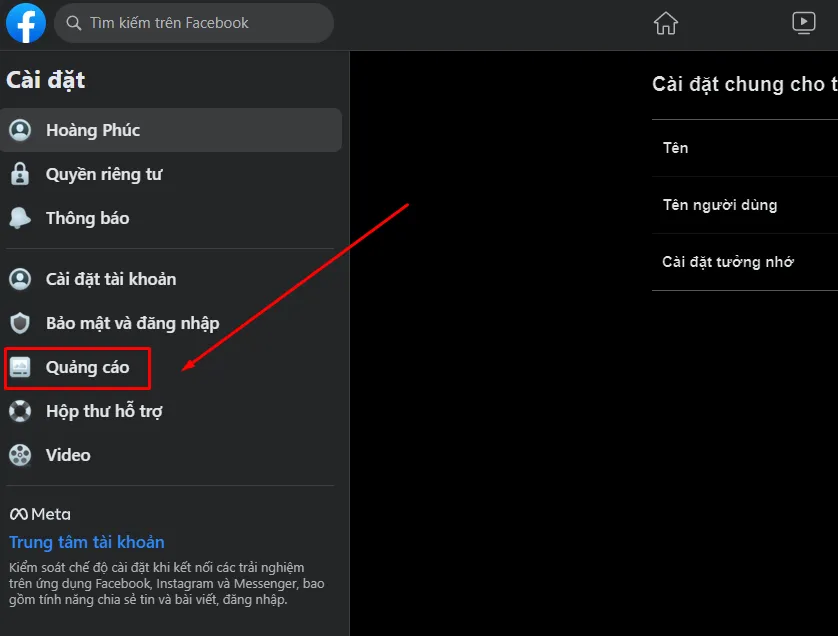
Step 1: Log in to your Facebook account and select Settings.
Step 2: In the list of options on the left-hand side, select Ads.
See more products: Buy advertising accounts
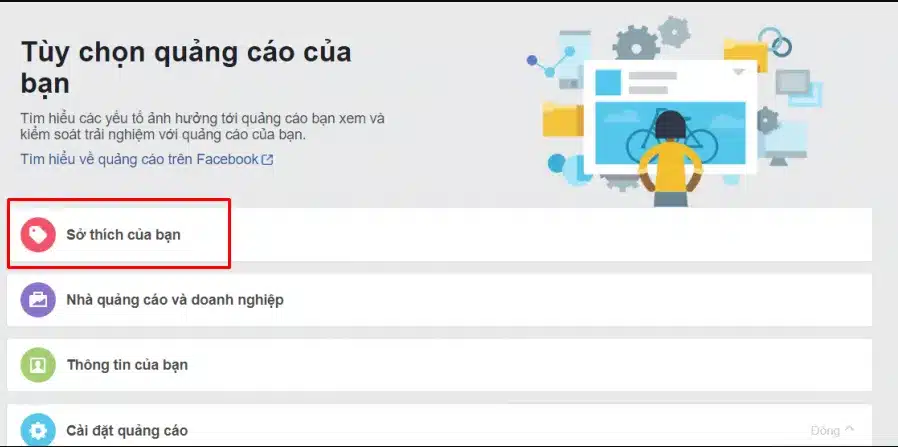
Step 3: Your Ad Preferences interface will appear. Then, click on Your Interests.
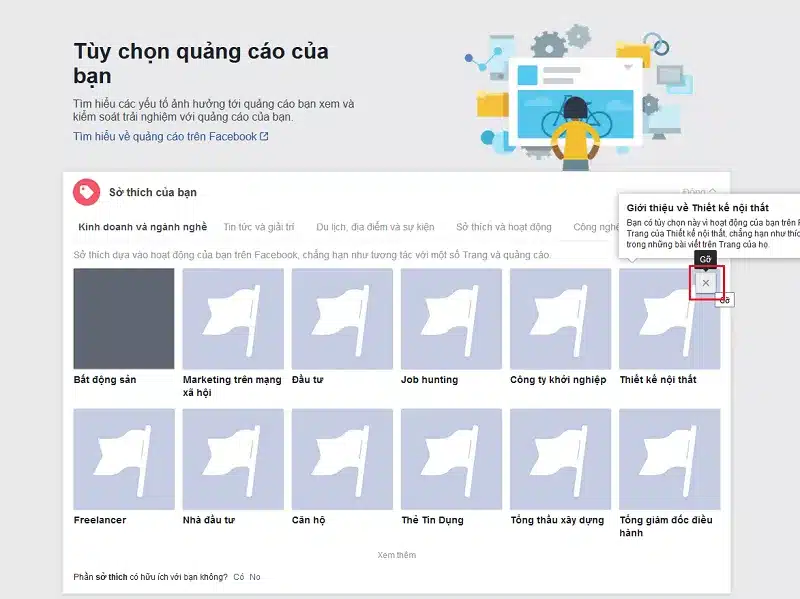
Step 4: Here, you’ll find six categories containing your interests, along with some unfamiliar ones. Simply click the Remove button to eliminate interests that don’t match your preferences.
Setting Up “Ad Restrictions” on Facebook
There are two ways to block ads on Facebook:
Method 1:
-
Step 1: Select Settings.
-
Step 2: Then, choose Ads.
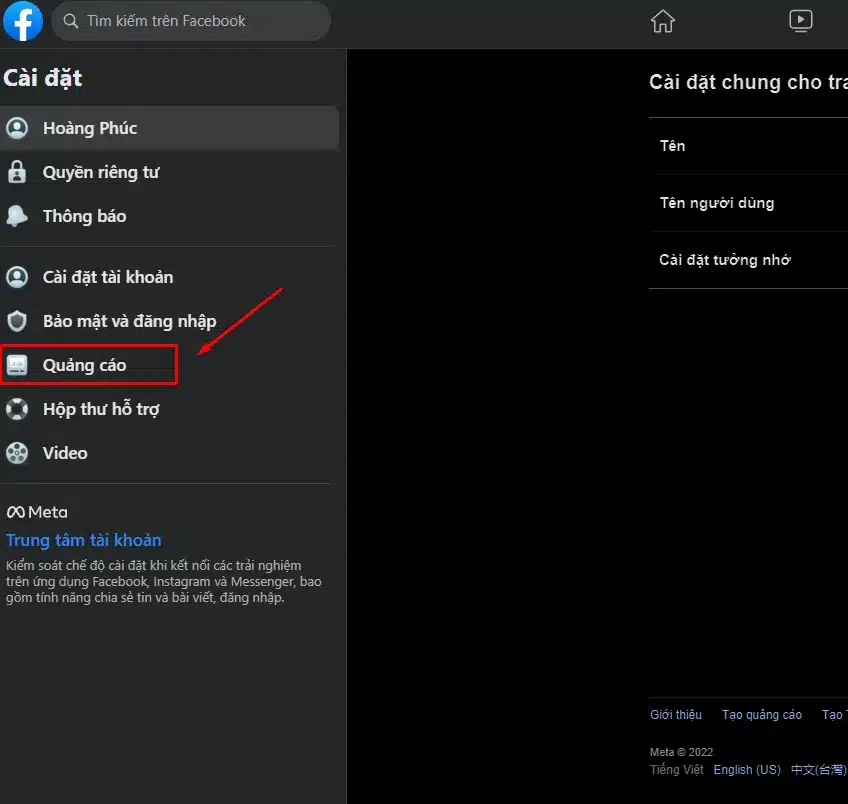
- Step 3: Scroll down and select Hide Ad Topics.

See more products: Buy advertising accounts
Method 2:
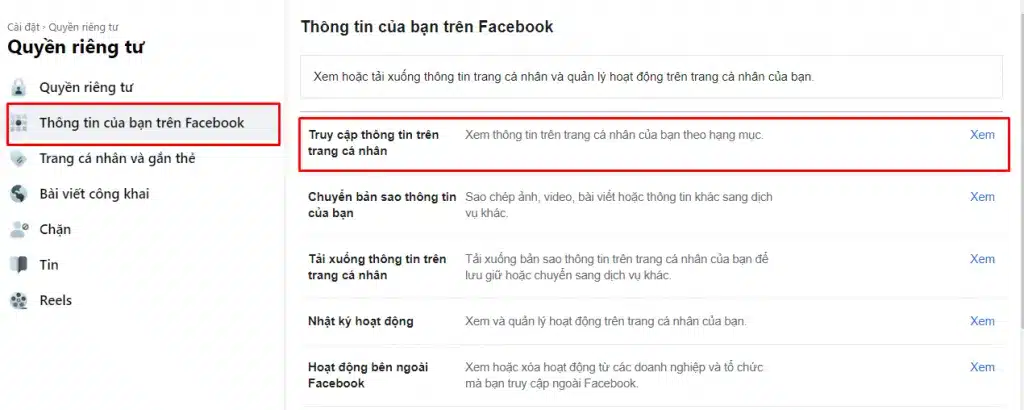
- Step 1: Go to Settings, select Your Facebook Information, and click View (Access Your Information).
-
Step 2: Scroll down and select About You, then choose Ad Preferences. This will take you back to the Ad Preferences interface.
-
Step 3: Continue scrolling to the bottom of the page and select Hide Ad Topics. Here, you’ll see three small tabs: Alcohol, Parenting, and Pets. Simply choose one of the three options — hide ads for 6 months, 1 year, or permanently — to remove and block ads on Facebook.
Limiting Public Sharing of Personal Information on Facebook and Browsing Habits on Google Chrome
Limiting personal information sharing on Facebook is another way to block ads and hide Facebook ads on Google Chrome, by reducing the amount of data Facebook can collect about you.
Step 1: Follow the same steps above to reach your Ad Preferences interface, then select Ad Settings.

Step 2: In this section, you’ll find two smaller categories: Data provided by partners about your activity and Your Interests. Simply turn off any information you don’t want Facebook to use for ad targeting.

Remove Unnecessary Apps and Limit Facebook Logins for Other Applications
Disabling Facebook ads on Google Chrome from your phone can be very simple by removing unnecessary applications.
-
Step 1: First, tap on the Settings icon, then select Apps and Websites.
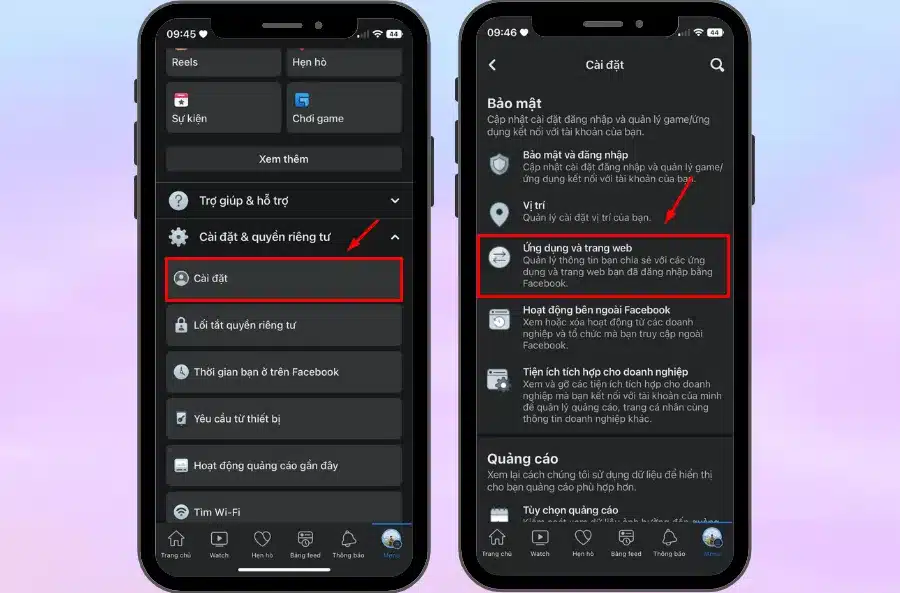
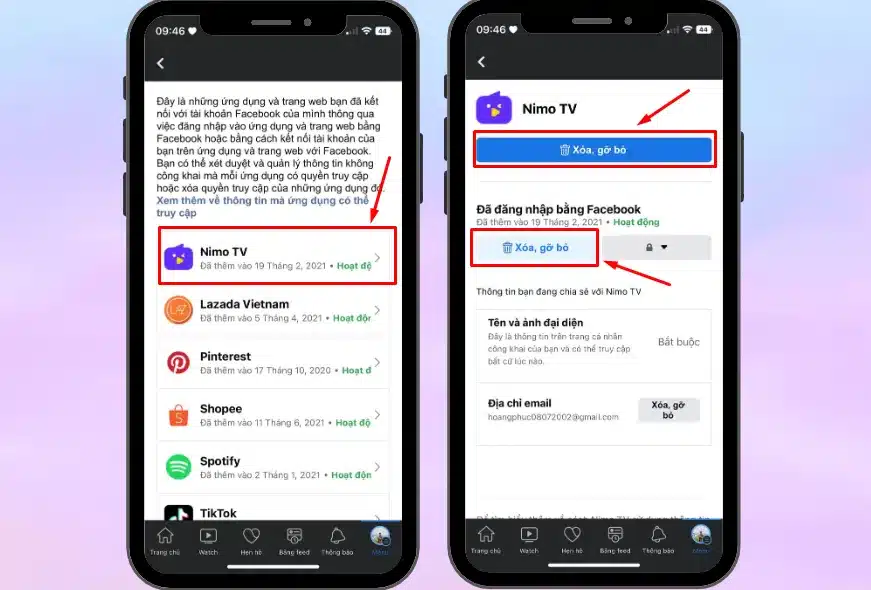
- Step 2: Next, choose the apps you no longer want to be linked to your Facebook account, then select Remove.
See more products: Buy advertising accounts
Block Facebook Ads on Google Chrome Using Adblock
Besides basic methods directly on Facebook, you can also use Adblock software to effectively reduce Facebook ads on Google Chrome. This tool helps block Facebook ads efficiently.
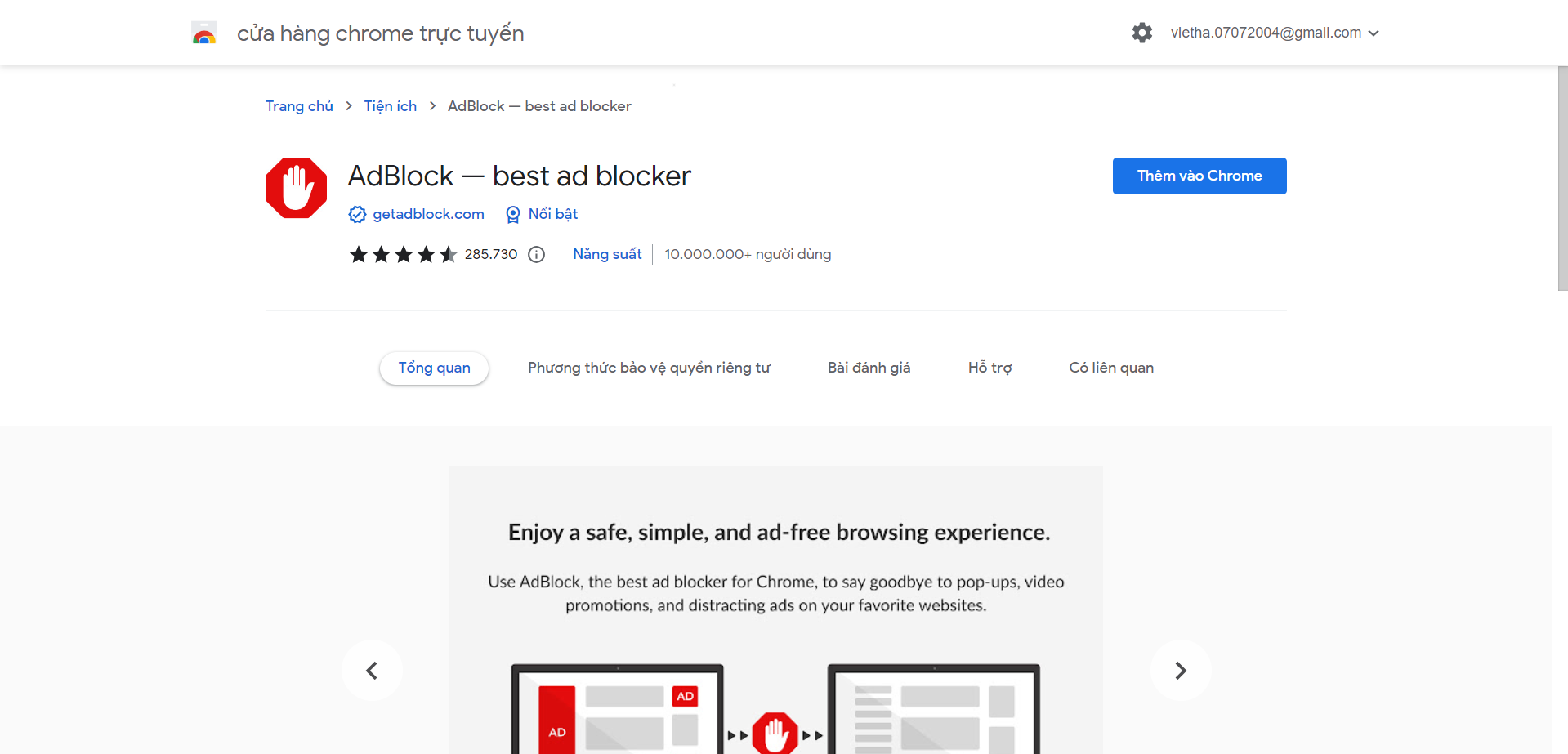
To do this, follow these steps on any browser such as Cốc Cốc, Chrome, or Edge:
-
Open your browser’s Extensions Store.
-
Search for and select Adblock or Adblock Plus.
-
Download and install the extension on your browser.
Once installed, Adblock will automatically block all types of Facebook ads on Google Chrome, including videos, images, pop-ups, and other ad formats.
If you are using Google Chrome, you can also download and install Adblock from this link.
Conclusion
The methods above provide a simple and easy way to block Facebook ads on Google Chrome. We hope this article helps improve your Facebook experience by reducing unwanted ads. If you find this guide helpful, feel free to share it with others!
If you need the most reputable payment method and advertising account provider, you can message the fanpage buybm365.com-Ads to receive advice from HT Media. In addition, you can follow the articles. Latest articles related to our Digital Marketing.





