


The fastest ways to turn off ads on Facebook mobile
Turning Off Facebook Ads on Mobile Helps You Avoid Distractions from Sponsored Posts. So, what can you do to block Facebook ads on your mobile device? Check out the article below for a guide on how to disable Facebook ads directly on your phone!
What Are Facebook Ads?
Facebook ads are advertisements displayed on the Facebook platform. Through these ads, you can reach over 2 billion Facebook users each month. This is a popular marketing channel used by businesses of all sizes, from small startups to large enterprises.
Why Do We See Ads from Advertisers on Facebook?
There are three main reasons why you see ads from advertisers on Facebook: your activity on Facebook & Instagram (Meta), your activity outside Meta, and the choices made by advertisers themselves.
1. Your Activity on Meta Technologies
Before diving deeper into this topic, let’s revisit the relationship between Meta and Facebook. Meta is the new parent company created by Mark Zuckerberg to replace the former Facebook Inc. It now oversees Facebook, Instagram, WhatsApp, Oculus, and more.
Based on your activity across Meta’s products, it shows you ads that it thinks you might be interested in. These activities include:
-
Ads you click on
-
Pages you like or follow
-
Content you create or interact with on both Facebook and Instagram
-
A range of interactions such as likes, comments, and shares
 See more products: Buy advertising accounts
2. Your Activity Outside Meta Technologies
Your activity outside of Meta’s platforms (Facebook & Instagram) includes your interactions with other businesses or organizations — for example, visiting their apps or websites. This information is shared with Meta through its business tools.
You can review and manage this data under “Your Activity Outside of Meta Technologies,” or choose whether Meta can use this data to show you ads through the “Ads from Data Provided by Partners” settings.
3. Advertisers’ Choices
The ads you see are often due to the choices advertisers make when creating their campaigns. They aim to connect with people they believe will be interested in their products or services. You can learn more about why a specific ad is shown to you by clicking “Why am I seeing this ad?” and viewing the “Advertiser’s Choices” section.
Advertisers use several types of information to tailor their ads to you:

3.1. Personal Information
Details like your age, location, and other demographic data help advertisers choose target customers. If you haven’t specified your gender in your profile, Facebook may infer it based on your activity.
3.2. Interests
Meta may use some of the data you provide and your activity on and off Meta to determine your interests and categorize you into user groups. For instance, Meta can identify whether you’re interested in cooking or fitness based on your engagement.
Using this information, Meta can connect you with businesses it believes you’ll care about. Advertisers also use this data to target users with specific interests or traits.
3.. Lookalike Audiences
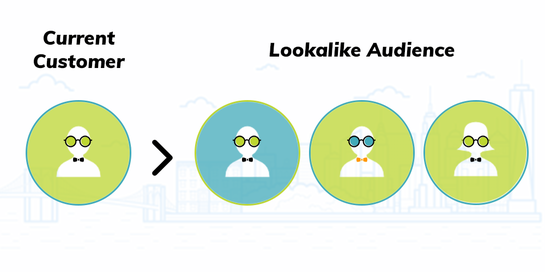
This is a way for advertisers to reach users similar to those who have already shown interest in their business.
For example, if you behave like users who previously engaged with an advertiser — such as liking or following their page or visiting their website — Meta might display their ads to you. It analyzes your interests and demographics to make this connection.
3.4. Custom Audiences
Custom Audiences let advertisers show ads to users who have already interacted with their business. Some ways to build Custom Audiences include:
-
Website or App Activity: Advertisers can use tools like Meta Pixel or Facebook SDK to collect user interaction data (e.g., purchases or app opens), and then display relevant ads to those users.
-
Customer Lists: Advertisers may upload hashed data (like email addresses) collected from interactions outside of Facebook to match users and serve targeted ads — all without revealing your identity.
-
Offline Activity: Businesses may provide Facebook with offline interactions, such as in-store purchases, which can then be used to show relevant ads and analyze ad performance.
3.5. Location Information
Facebook uses your location data to help advertisers reach users who are near a specific area. Location data may come from where you connect to the internet, use your phone, or interact with Facebook or Instagram.
There are many reasons why you might see ads on Facebook — it’s all part of their system to personalize the advertising experience and keep users engaged.
Two Simple and Quick Ways to Turn Off Facebook Ads on Mobile
There are two main methods to turn off Facebook ads on your mobile device: Disabling ads through the Facebook app or using a third-party application.
1. Disable Ads via the Facebook App
For Apple iOS:
-
Step 1: Open Facebook > Tap the three horizontal lines in the bottom right corner > Go to “Settings & Privacy” > “Privacy Shortcuts” > “Ad Preferences”.
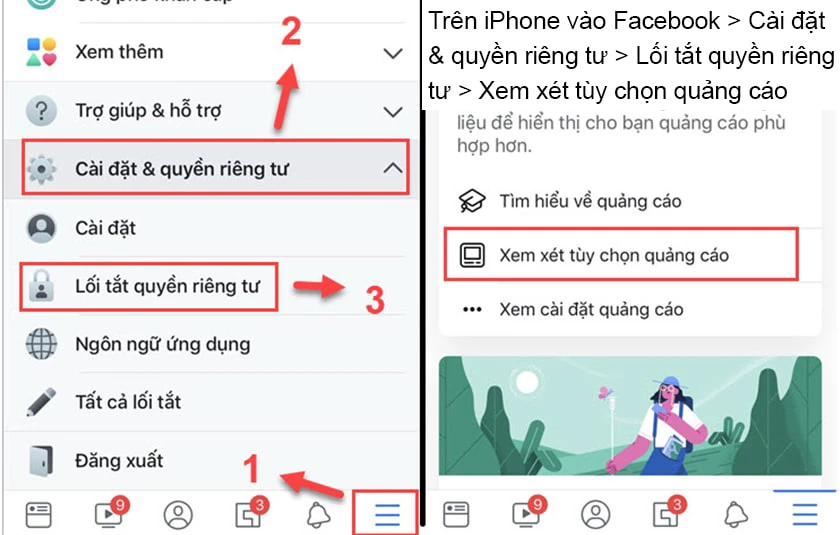
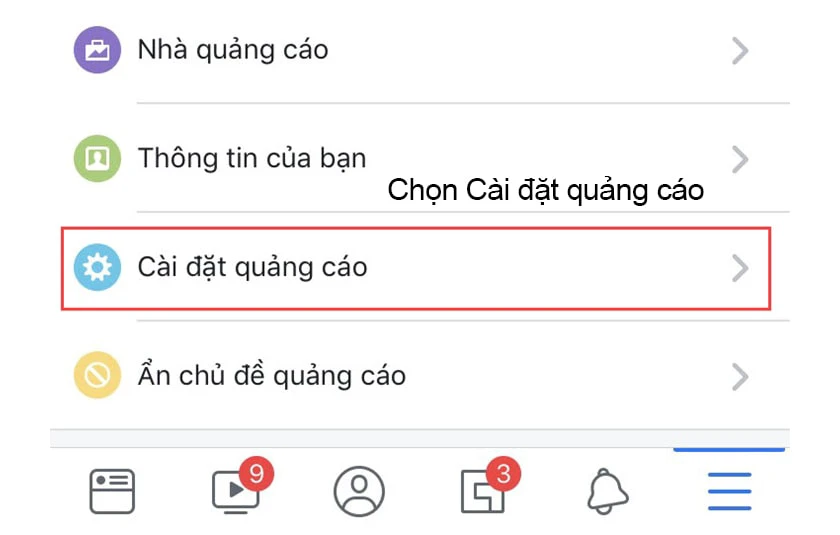
Step 2: Tap “Ad Settings” to begin configuring ad blocking on your iPhone.
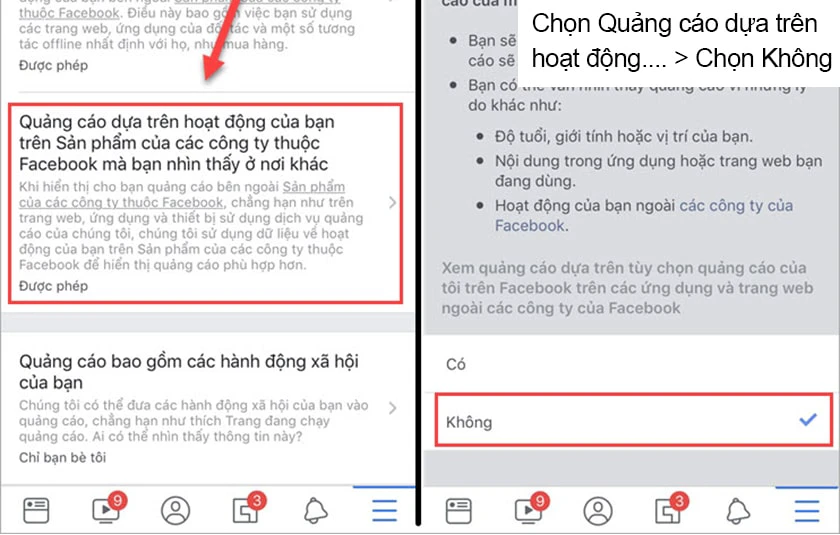
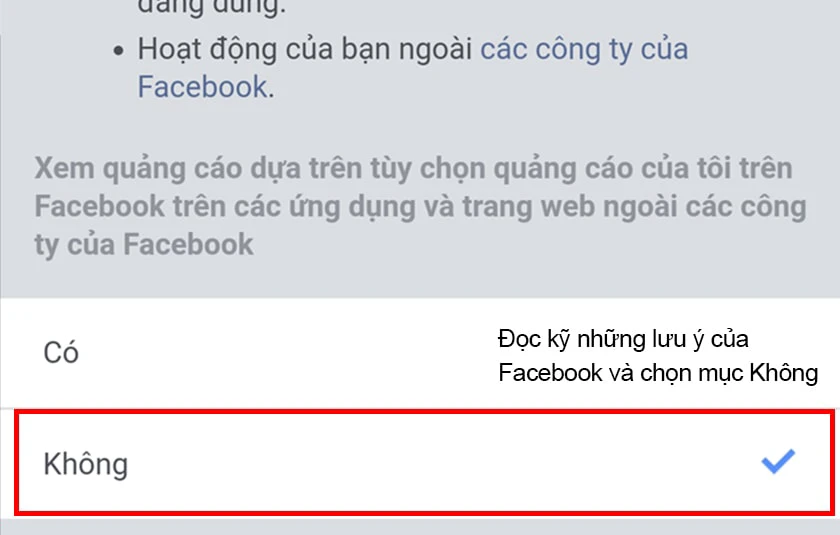
Step 3: Select “Ads based on your activity on Meta Company Products” and choose No.
Step 4: You can also choose to hide certain ad topics by going to “Hide Ad Topics” > Select topics you are not interested in > Tap “Hide Permanently” to stop seeing those ads.
For Android:
Similar to iOS, Android users can follow these steps:
-
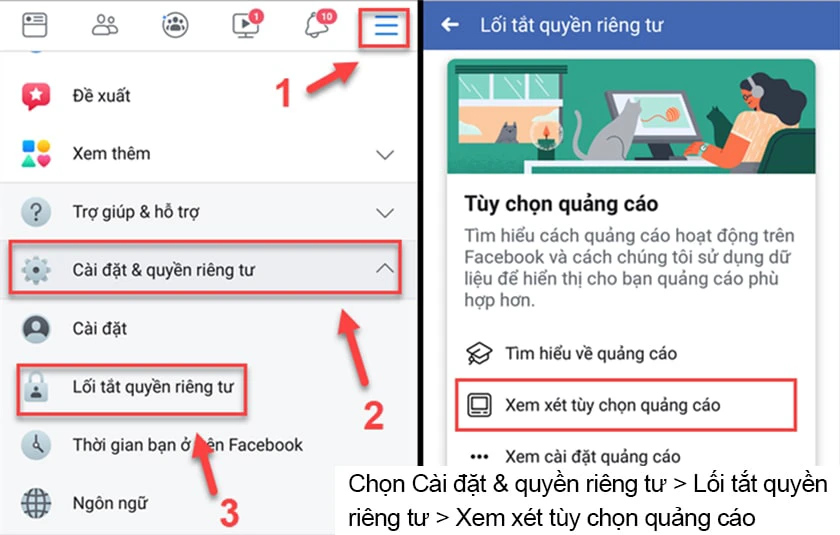
Step 1: Open the Facebook app and log in to your account. Tap the three horizontal lines on the main interface > “Settings & Privacy” > “Privacy Shortcuts.”
-
Step 2: In the “Privacy Shortcuts” menu, tap “Ad Preferences” to continue setting up ad blocking.
 See more products: Buy advertising accounts
Step 3: Tap “Ad Settings” > Then go to “Ads based on your activity on Meta Company Products” as shown in the image (not included here).
2. Disable Facebook Ads Using Third-Party Applications
If you’re unable to disable Facebook ads directly through the Facebook app on your phone, you can turn to powerful third-party applications for assistance..
For Apple Devices
One of the apps used to block Facebook ads on iPhones is Eagle Browser. This is a free and open-source web browser developed by a Vietnamese tech company – VNG Corporation. Eagle Browser emphasizes security and privacy, making it a safe alternative for those concerned about personal data on mainstream browsers.
Once the app is launched, you’ll see icons for Facebook along with other platforms like YouTube, Instagram, and Netflix — all of which Eagle Browser can block ads for. Select Facebook and log into your account. Then, simply use Facebook as usual.
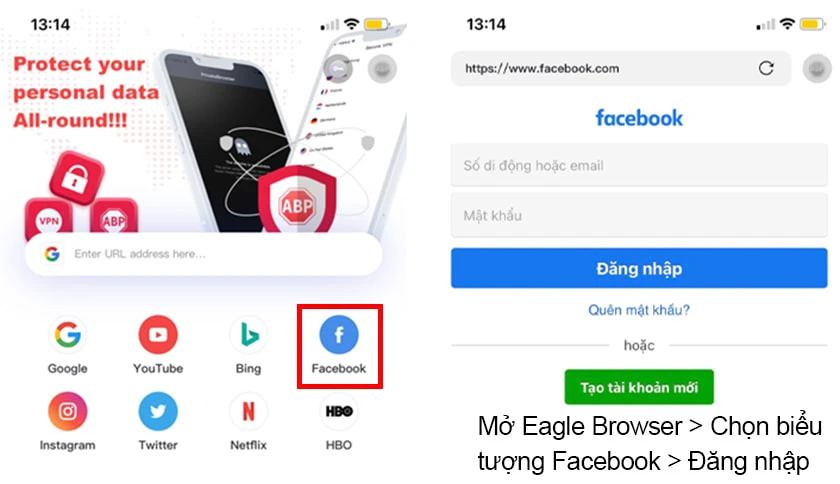
When you access Facebook through Eagle Browser, the app will automatically block ads from appearing, providing a smoother and distraction-free social media experience.
Besides Eagle Browser, you can also try other applications to block Facebook ads on your phone, such as:
-
AdGuard
-
Ghostery
-
AdBlocker Ultimate
-
AdLock
-
…
For Android Devices
On Android phones, the Opera Browser is a popular option for blocking Facebook ads. To use this feature, go to the Google Play Store, download, and install the Opera browser on your Android device.
After installation, simply access your Facebook account through Opera. Thanks to its built-in ad-blocking feature, Facebook ads will not appear when browsing through this browser.
Besides Opera Mini, Android users can also download other apps to block Facebook ads, including:
-
AdAway
-
CyberGhost
-
AdGuard
-
…
Should You Turn Off Facebook Ads?
Whether or not to block Facebook ads depends on your personal needs. If you don’t want to miss out on promotions or shopping opportunities on Facebook, then it’s best not to turn off ads.
However, if you mainly use Facebook as a tool for entertainment and aren’t interested in advertising, then blocking ads may be the better choice. It will give you a more seamless experience, free from ad interruptions.
If you need the most reputable payment method and advertising account provider, you can message the fanpage buybm365.com-Ads to receive advice from HT Media. In addition, you can follow the articles. Latest articles related to our Digital Marketing.





