


The easiest way to create a website on Google Site
For those who want to create a website but don’t know where to start, the article below will guide you on how to create a website on Google Sites in the simplest way. Let’s explore it!
What is Google Sites?
Google Sites is an online application that allows users to create websites easily, similar to creating a document. With Google Sites, you can upload a variety of content to a single page, including videos, attachments, text, images, and many other types of content.

In particular, Google Sites also allows you to share this information easily with individuals or multiple people. Below is the most detailed guide on how to create a website on Google Sites.
See more products: Buy advertising accounts
How to Create a Website on Google Sites
Here’s how to create a website on Google Sites in just 5 simple steps:
Step 1: Go to https://sites.google.com/new with your Google account.
Step 2: Click on the “+” sign to create a new blank page.
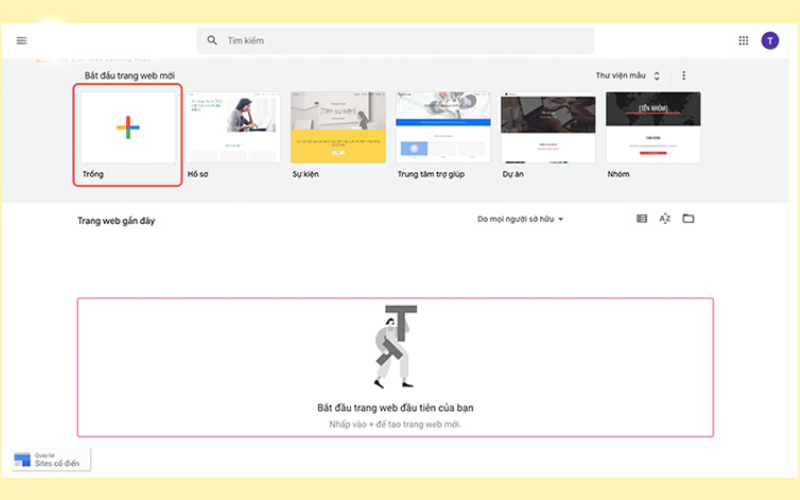
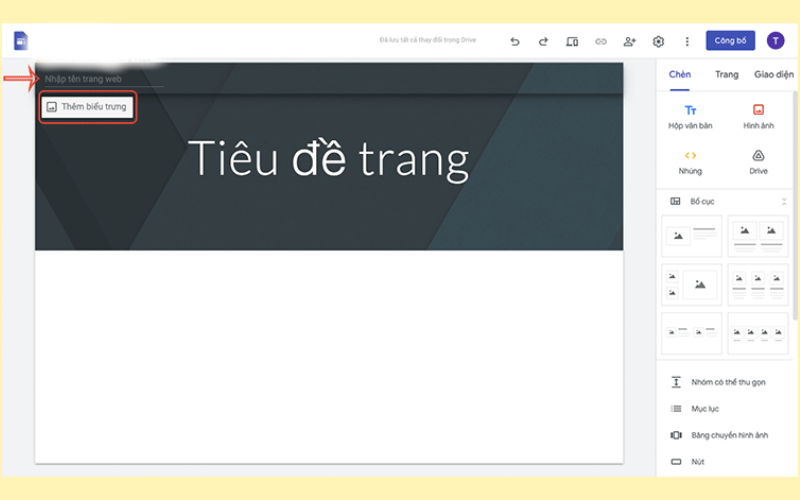
Step 3: In this window, you will begin the following steps:
Basic Information
-
Enter the name of your website and add a logo or icon for your website.
-
Edit the main title of the page and change the background image if necessary.
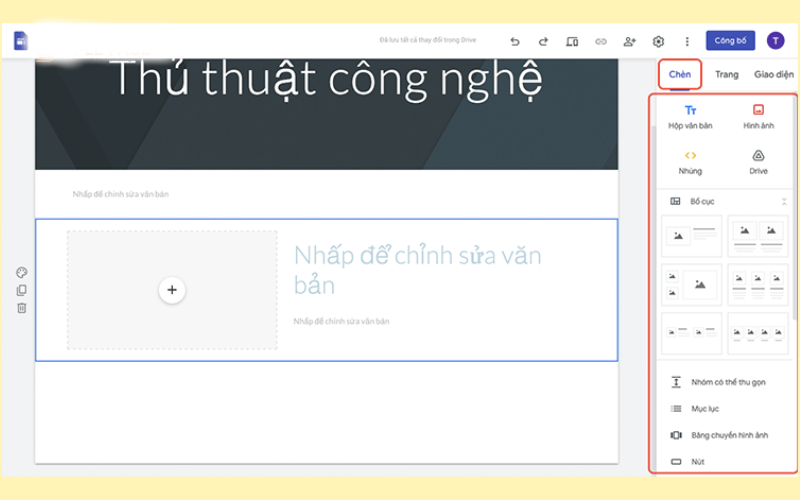
Insert More Content
In the tools list on the left, under the “Insert” section, you can customize a variety of content:
-
Add text boxes, images, or links.
-
Choose a layout to arrange the content on your page.
-
Add features from Google Drive, Calendar, Sheets, Forms, YouTube, and other options.
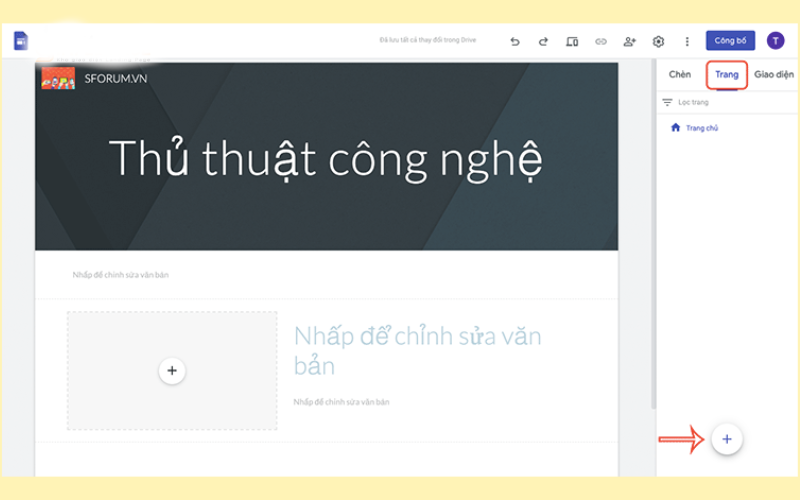
Create Additional Subpages
A website often doesn’t just have a main page but also related subpages. You can do the following:
-
In the “Pages” tab, hover the cursor over the “+” symbol, then select “New Page” to add a new page.
-
Choose “New Link” to create a link to another website or select “New Menu” to create a list of subpages.
Change the Appearance
Google Sites allows you to use pre-made themes but also lets you change colors based on your personal preferences in the “Themes” section. You just need to follow these steps:
-
Choose your preferred theme style.
-
Choose the colors you want to use.
-
Change the fonts to add creativity to your website.
 Step 4: In the top right corner of the screen, click the “Preview” icon to get a clear view of what you’ve added and edited.
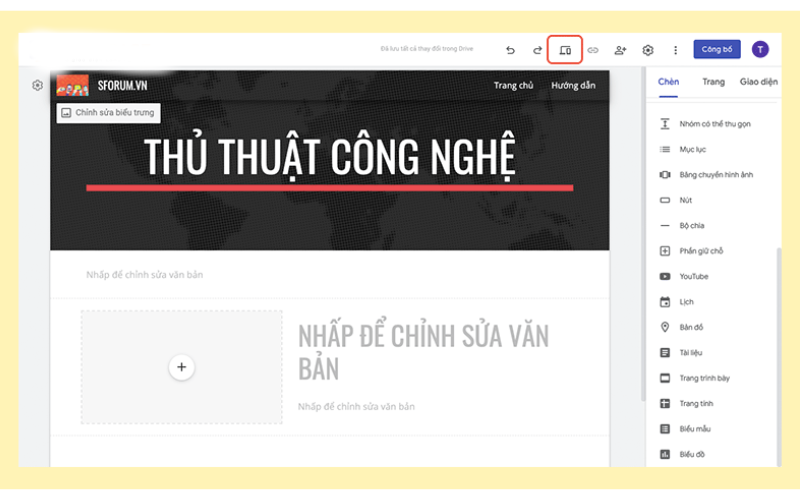
You can also change the target device to a mobile phone or tablet to see how your website looks on different devices for a more comprehensive overview.
See more products: Buy advertising accounts
Step 5: Once you’re done with your website, simply click the “Publish” button to complete the process.
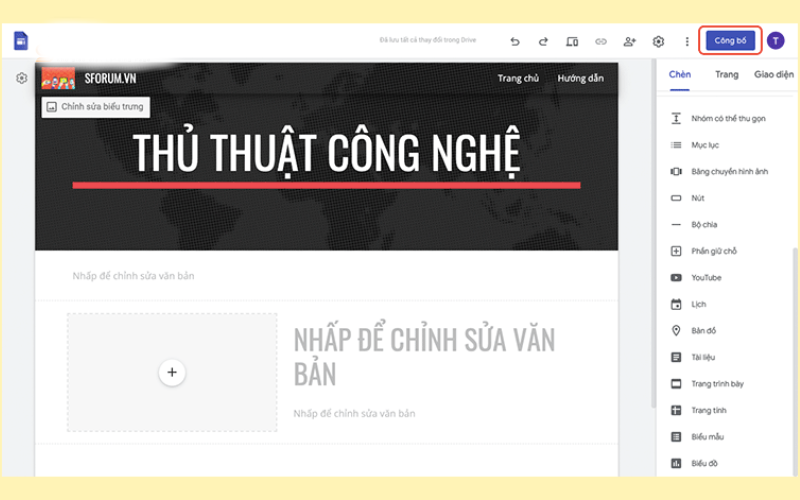
If you wish, you can also change the URL created by Google Sites.
To let others access the website you just created, share the link by copying it from the “Copy published website link” section.

=>>> See also: Earn money with Google Adsense via a Vietnamese news site
Above is the simplest way to create a website on Google Sites. I hope this article provides you with the information you need to create your website with ease. Thank you for reading!
If you need the most reputable payment method and advertising account provider, you can message the fanpage buybm365.com-Ads to receive advice from HT Media. In addition, you can follow the articles. Latest articles related to our Digital Marketing.





