


Instructions on how to add and create locations on Google Maps on computers and phones the fastest
Google Maps is one of the most convenient tools that helps others easily find your store or business. Therefore, creating a location on Google Maps is an important step when verifying your Google business. In this article, we will guide you on how to add and create a location on Google Maps quickly using both a computer and a mobile phone. Let’s follow along!
I. Why should you add a location to Google Maps?
In today’s digital age, creating an address on Google Maps is not just about displaying a business address on Google’s map. Adding a location to Google Maps offers many other important benefits for a business in its brand marketing strategy.
-
Helps your store or business stand out in Google search results, enhancing brand recognition and bringing you closer to users.
-
Users can easily find you with basic information such as address, images, and accurate location pinpointing.
-
Optimizes local search results for your business, making it easier to reach potential customers nearby.
-
Helps manage and update information such as working hours, hotline numbers, and also monitor and respond to reviews/feedback from customers about your business on Google.
Given these benefits, adding a location to Google Maps is essential. Especially for businesses in fields that use websites like hotels, restaurants, and travel, this should be prioritized. By verifying your business on Google, your promotion efforts become more professional. You can also view this as an effective and cost-saving marketing solution.
See more products: Buy advertising accounts
II. Information you need to prepare before creating a Google Map location
Creating a location on Google Maps is completely free. However, to make the process smooth, you need to prepare the following information before adding your business to Google Maps:
-
A Gmail account to log in
-
A profile image, your business’s official logo
-
Images of the exterior, office, and interior activities of your business
-
The exact address of your business to receive the confirmation PIN from Google
III. How to create and add a location on Google Maps using a computer or phone quickly
Creating a location on Google Maps is quite simple. All you need is a computer or smartphone to do it easily. Depending on the device you use, the method to create a Google Map location may vary slightly.
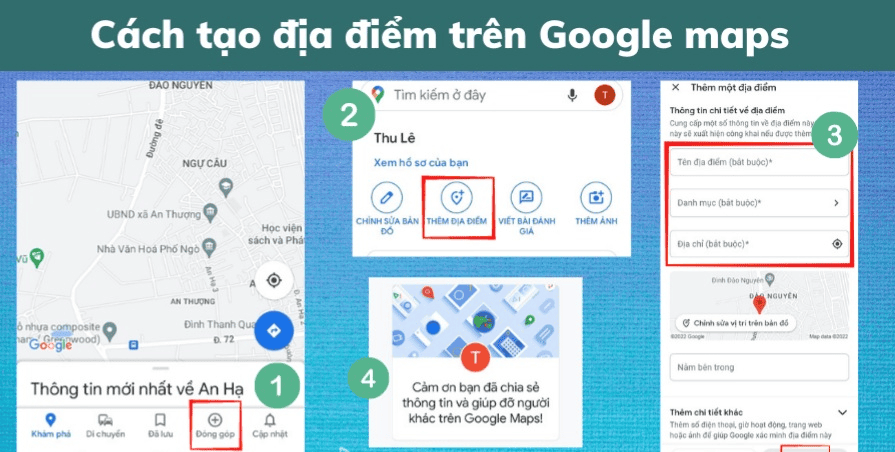
1. How to create a location on Google Maps from a computer
Creating a business location on Google Maps can be done through any web browser on your computer by following the instructions below:
1.1. Quick guide
The steps to create a location on Google Maps are as follows: Access Google Maps on a browser => Click on the three horizontal lines icon => Select “Add a missing place” => Fill in the details => Click “Submit.”
1.2. Detailed guide
Step 1: Visit the Google Maps website on your computer browser.
Step 2: Click on the three horizontal lines icon in the upper left corner of the screen, and a menu with various Google Maps functions will appear.

Step 3: From the available options, click on “Add a missing place.” When selecting this function, you need to fill in some detailed information about the location.

Step 4: Enter all the required details for the location you wish to create on Google Maps, such as the location name, address, and category. These are the mandatory fields when creating a Google Map listing for a business. You must fill in the full address, including the house number, street name, district/ward, city/province, etc., because Google will verify the address of the registered business.
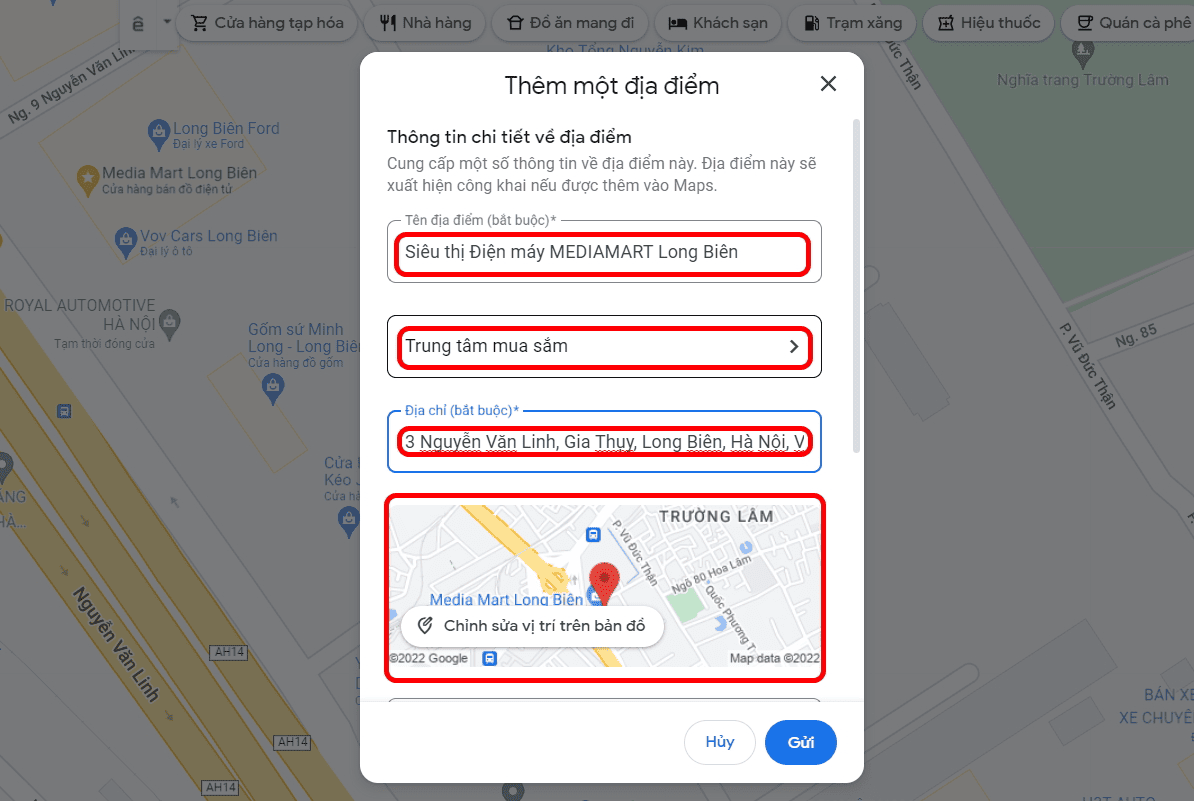
In addition to entering the information in text form, you also need to drag the red pin on the map to the exact location for the Google Map listing. This manual action is necessary because Google might not be able to identify the location automatically. After that, click “Done.”
For the category of the location, you need to select the appropriate subcategory. For example, if your business is an electronics supermarket, select “Shopping” as the primary category and “Shopping Center” as the subcategory.

Click on “Add other details” to provide additional information about your business, such as working hours, contact number, website, description, and images of the location. When creating your Google Map, it is recommended to add real photos of your business activities to help Google approve your listing more easily, then click “Save.”
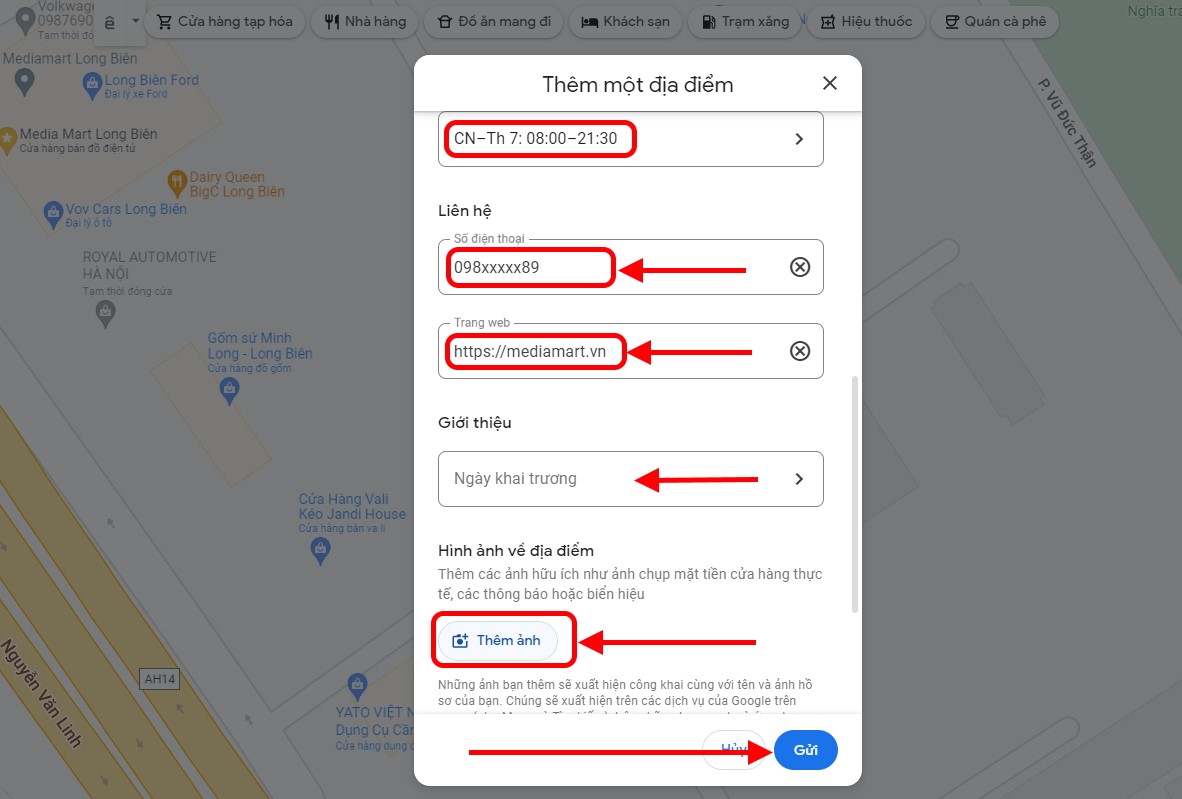
Step 5: Once you have completed all the information, click the “Submit” button.
Once Google Maps receives your suggestion for a new business location, it will verify and send a notification about the accepted content to your email.

Note: Creating a location on Google Maps will not result in immediate outcomes. Google will need some time to review and verify the information you provided. If the information is accurate, Google will approve your location and display it on Google Maps.
See more products: Buy advertising accounts
2. How to add a location on Google Maps from your phone
To verify your Google business on a computer, you can use both Google My Business and Google Maps. However, on mobile devices, Google My Business has been replaced by Google Maps. Nevertheless, whether you use a tablet or an Android phone, adding a location on Google Maps is still quite simple.
1.1. Quick guide
Open the Google Maps app on your mobile device => Enter the address where you want to add a location in the Google Maps search bar => Select “Add a missing place” => Fill in the details => Click “Submit.”
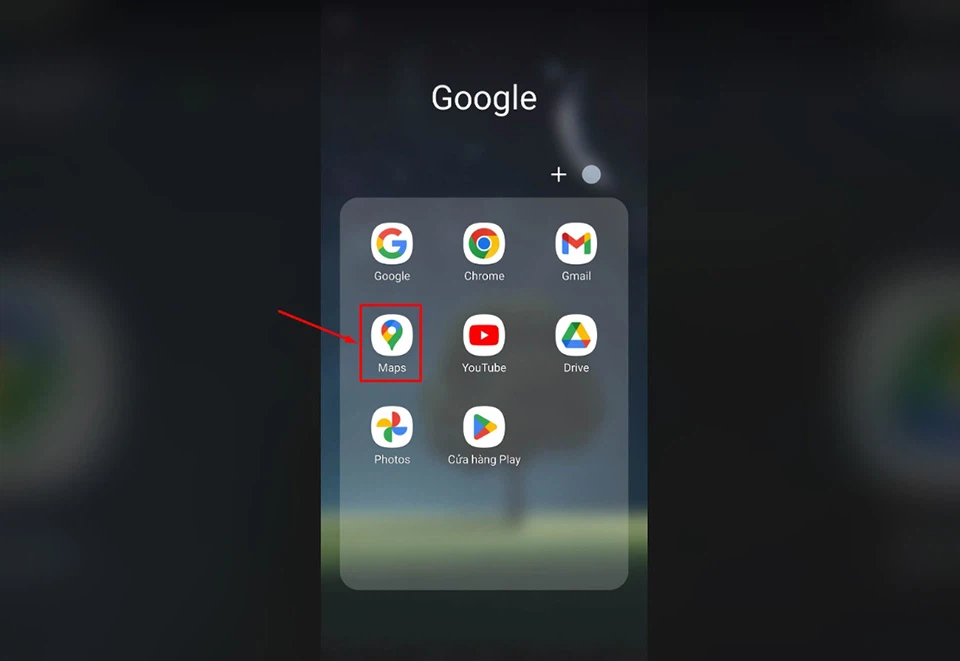
1.2. Detailed guide
Step 1: Open the Google Maps app on your mobile device. If the app is not already installed, you need to access Google Maps through the system’s link.
Step 2: Enter the address where you want to add a location in the Google Maps search bar. A red pin will appear on the screen.

Step 3: Tap on the red pin or swipe the menu at the bottom to expand the available options. Then, select “Add a missing place.”
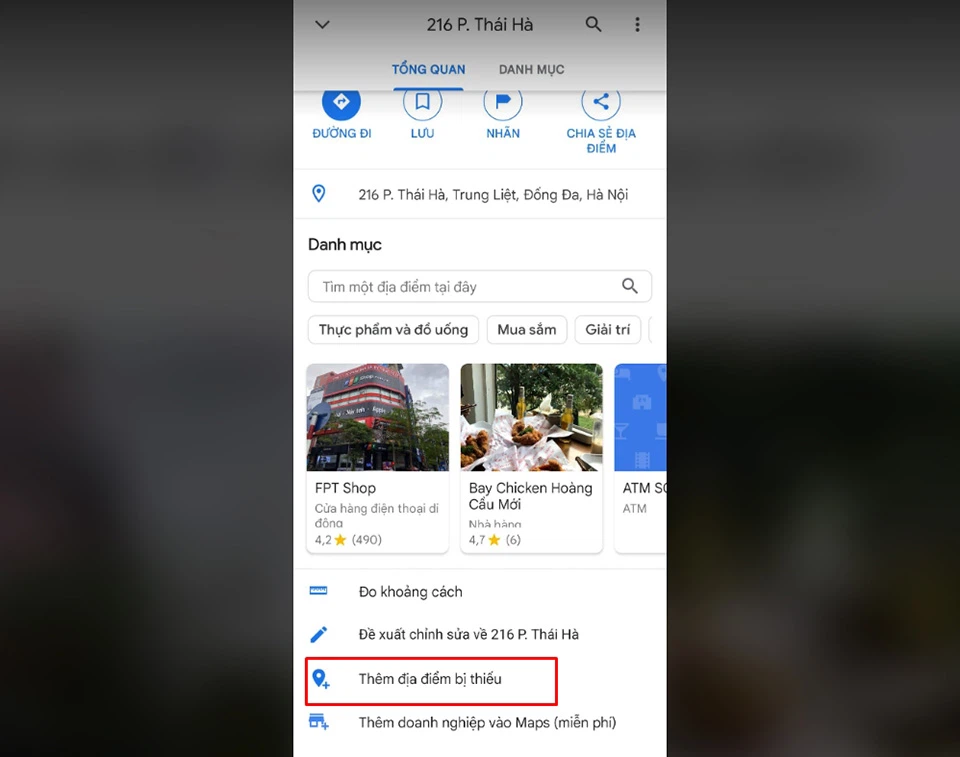
Step 4: Fill in all the information about your business, just like you would on a computer, including the location name, address, category, and other details. All information must be provided as accurately as possible to prevent Google from blocking your map. Then, click “Save.”
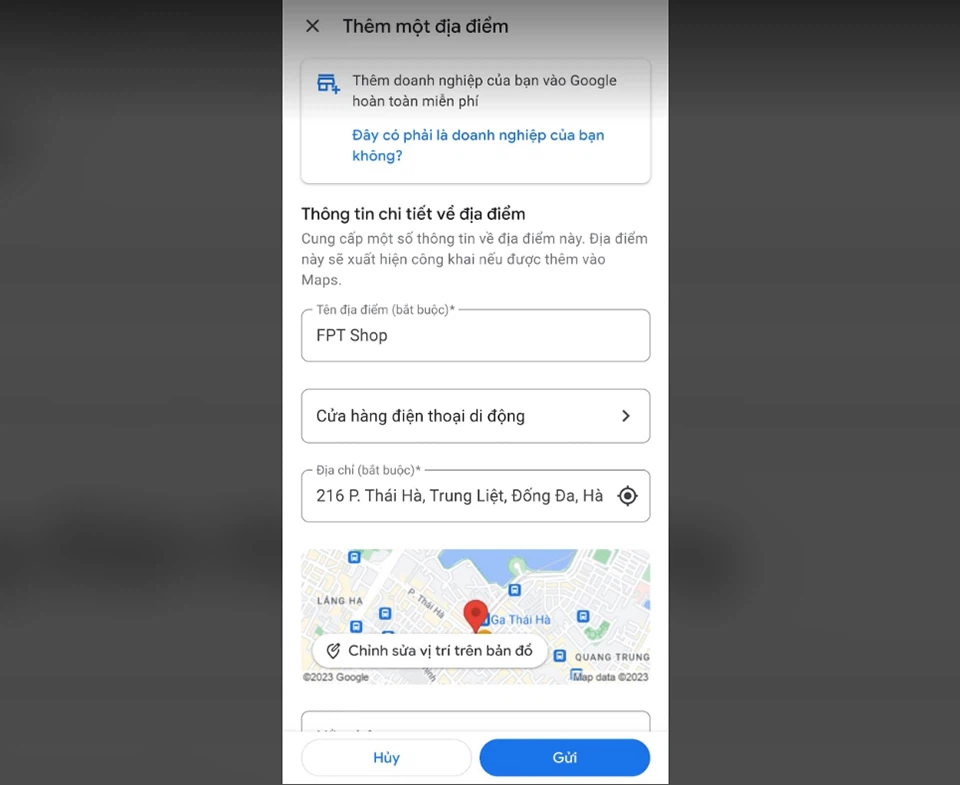
Step 5: Click the “Submit” button after completing the information.
Just like on the computer, Google will take some time to evaluate the validity of the information. If approved, the location you suggested will be publicly displayed on Google Maps.
IV. How to edit an address that has already been created on Google Maps
The information related to a location on Google Maps can change over time, such as changes in the location, operating hours, phone number, website, etc. This could be due to changes in the business itself or even because of malicious competitors. In this case, you can use the Google Business verification service to make corrections, or you can update the information yourself to better serve users.
See more products: Buy advertising accounts
The steps you need to follow are: Access Google Maps => Click on the created location you want to edit => Select “Suggest an edit” => Select “Change name or other details” => Edit the required information. The process is as follows:
Step 1: Open Google Maps. Enter the address you want to edit in the Google Maps search bar.
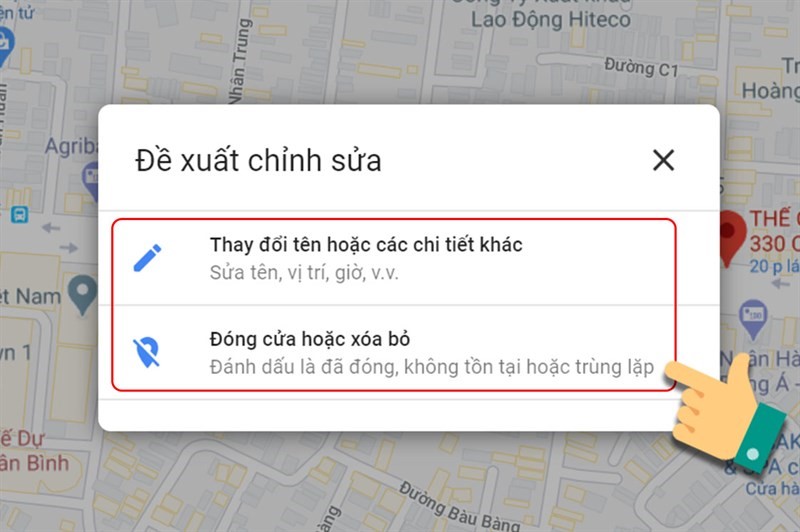
Step 2: Select “Suggest an edit,” which has a pencil icon.
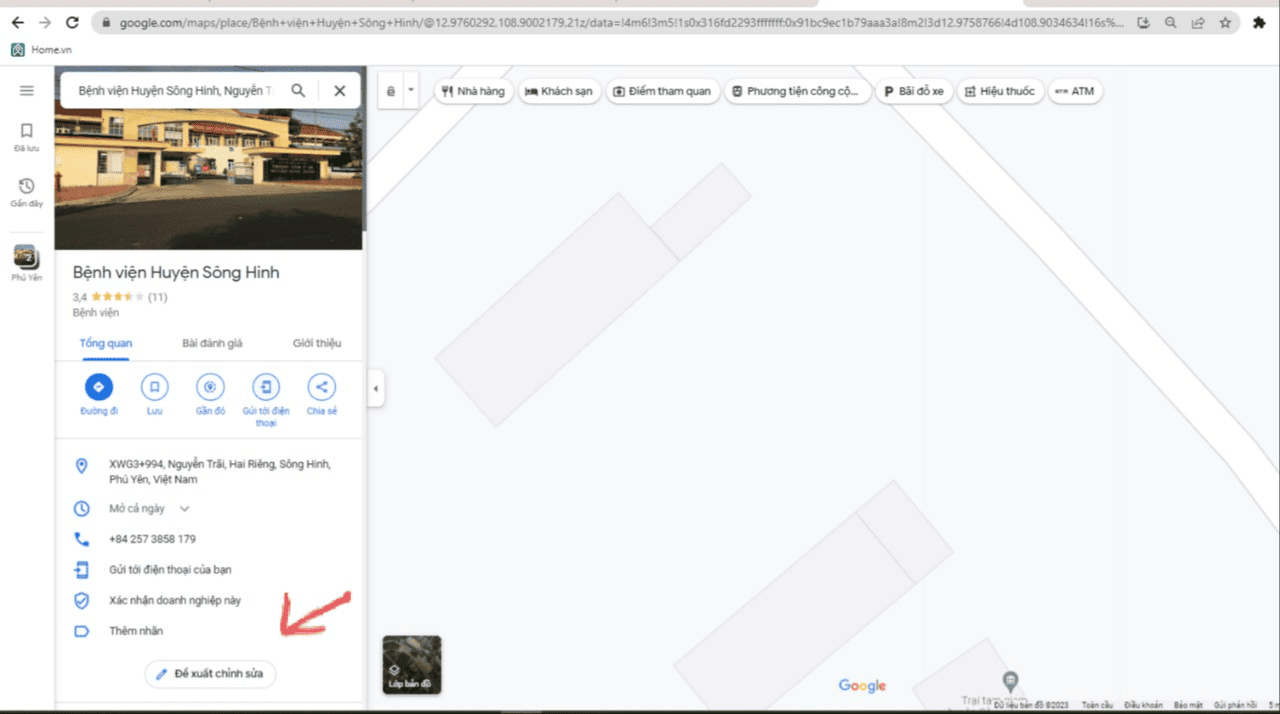
Step 3: Choose “Change name or other details” if you want to edit the information. Select “Close or remove” if you want to delete the location you created.
Step 4: After selecting “Change name or other details,” the “Suggest an edit” screen will appear. Proceed with editing the information that needs to be corrected and click “Submit.”
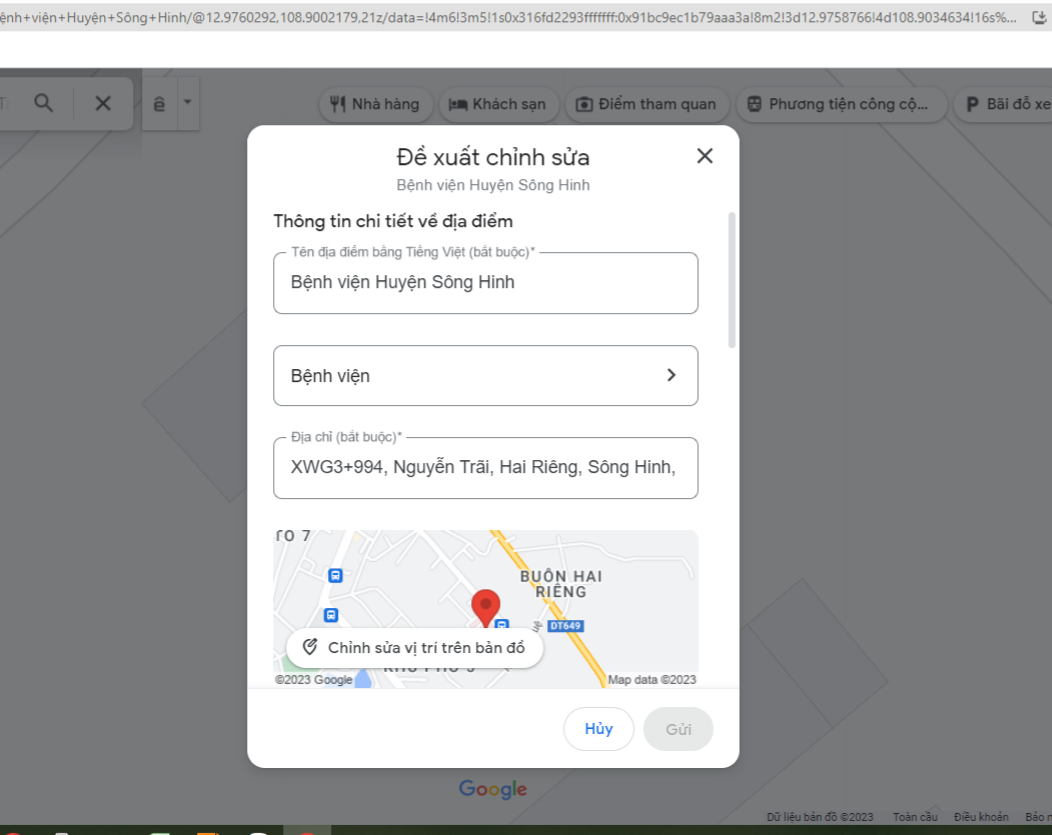
That’s it! You’ve completed the steps to edit the address information that was created on Google Maps. Google will review the suggested changes, approve them, and update your business’s address accordingly.
If you need the most reputable payment method and advertising account provider, you can message the fanpage buybm365.com-Ads to receive advice from HT Media. In addition, you can follow the articles. Latest articles related to our Digital Marketing.





