


Instructions for configuring Outlook for Gmail Google Workspace
Configuring Outlook for Gmail with Google Workspace is a helpful utility for users who want to manage their Gmail accounts directly within Outlook. With Outlook for Gmail via Google Workspace, you can save time, boost productivity, and work more efficiently.
Step-by-Step Guide to Configuring Outlook for Gmail with Google Workspace for the First Time
Due to Google’s high security standards, you cannot configure Outlook for Gmail immediately. You must first enable POP/IMAP and allow access for less secure apps to use Gmail via POP/IMAP.
See more products: Buy advertising accounts
How to Configure Outlook for Gmail with Google Workspace:
Step 1: Enable POP/IMAP in Gmail to Configure Outlook for Gmail with Google Workspace
First, log into your Gmail account, then click the Settings (gear icon) on the Gmail interface => click on See all settings.
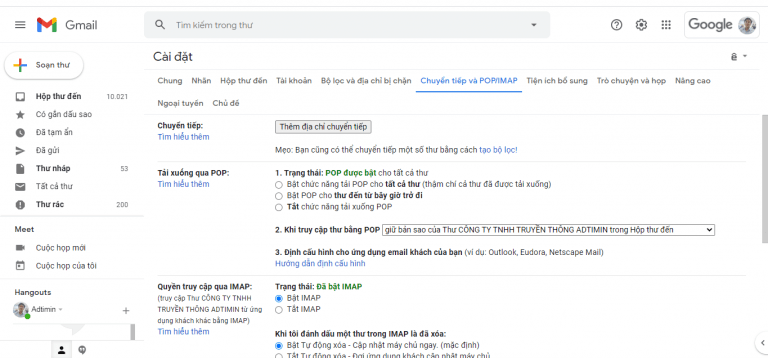
In the settings menu, go to the Forwarding and POP/IMAP tab as shown below => then check the following:
-
Enable POP for all mail
-
Enable IMAP in the IMAP access section
Then click Save Changes, and enable Less Secure App Access to allow Gmail to be sent and received via Outlook.
Next, copy and paste the following URL into your browser:
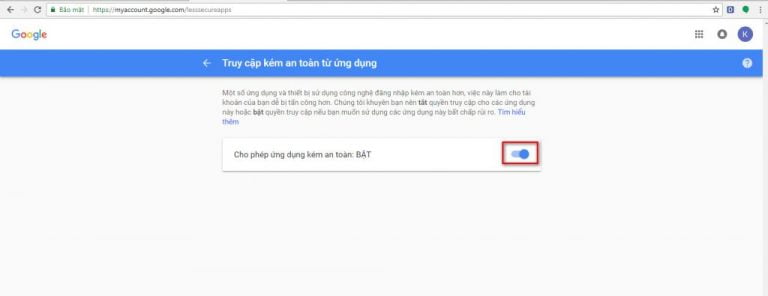
Then enable the Allow less secure apps setting.
Step 2: Allow Access for Less Secure Apps to Access Your Gmail Account
Go to your account management settings => and turn on the option to allow third-party apps to manage your Gmail.
If you receive a message that Google has disabled this feature, you will need to turn off 2-Step Verification on your Gmail account to easily link Gmail with Outlook. You can follow this link to turn off 2-Step Verification.
Alternatively, if you want to keep 2-Step Verification on, you can generate an App Password by clicking Learn more and following the instructions.
Again, enable Less Secure App Access to allow email sending and receiving in Outlook:
Paste this address in your browser: https://www.google.com/settings/security/lesssecureapps
Then check the box to enable it.
Step 3: Configure Outlook for Gmail with Google Workspace
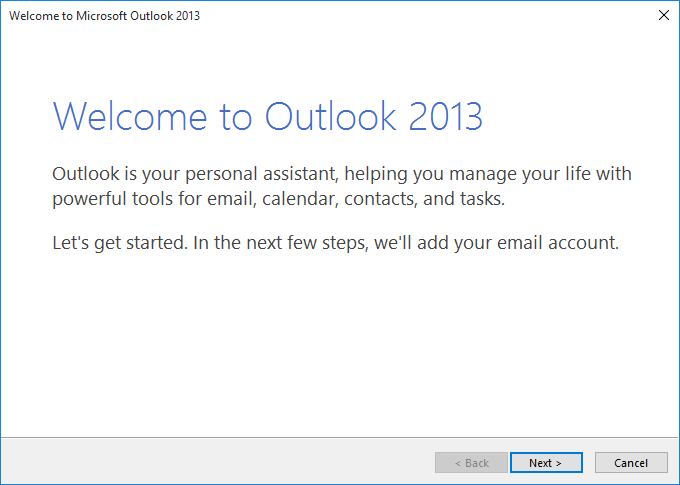
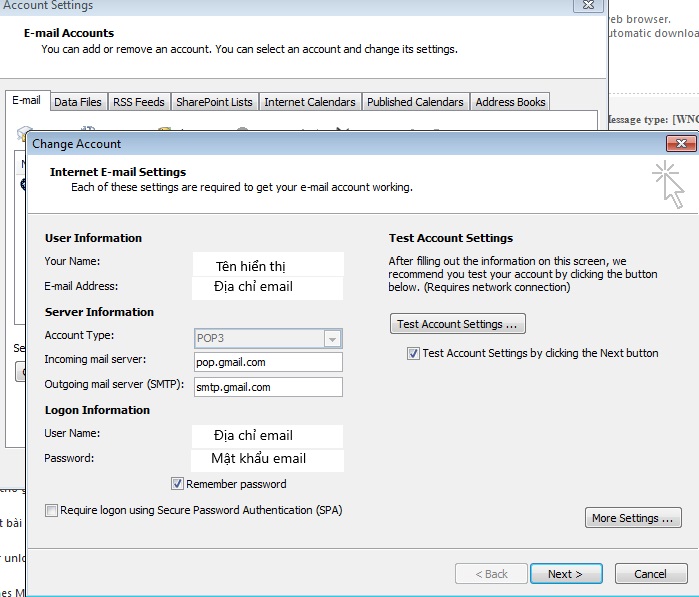
Below is a guide for configuring Gmail using IMAP. Note that you should replace the domain with your actual domain name, or use gmail.com if you are using a personal Gmail account.
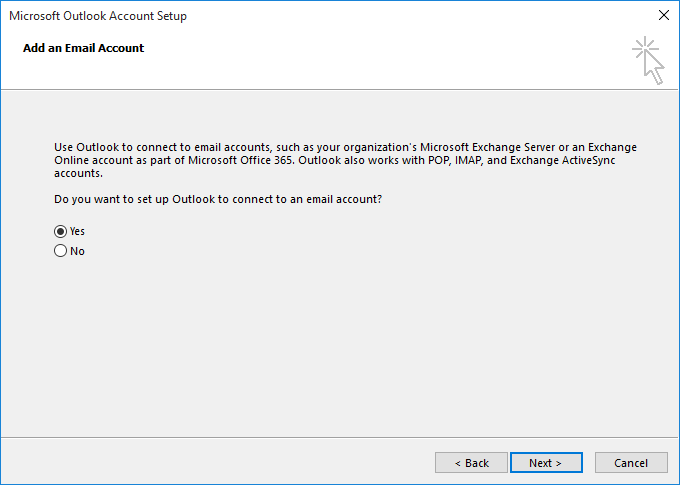
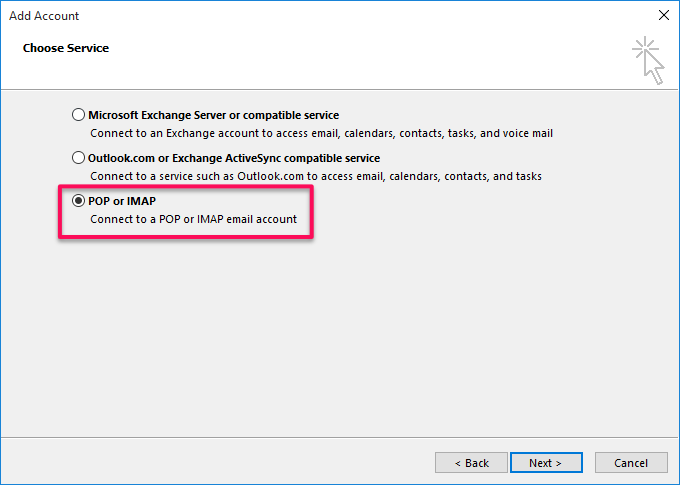
-
Incoming Mail (IMAP/POP):
pop.gmail.com -
Outgoing Mail (SMTP):
smtp.gmail.com
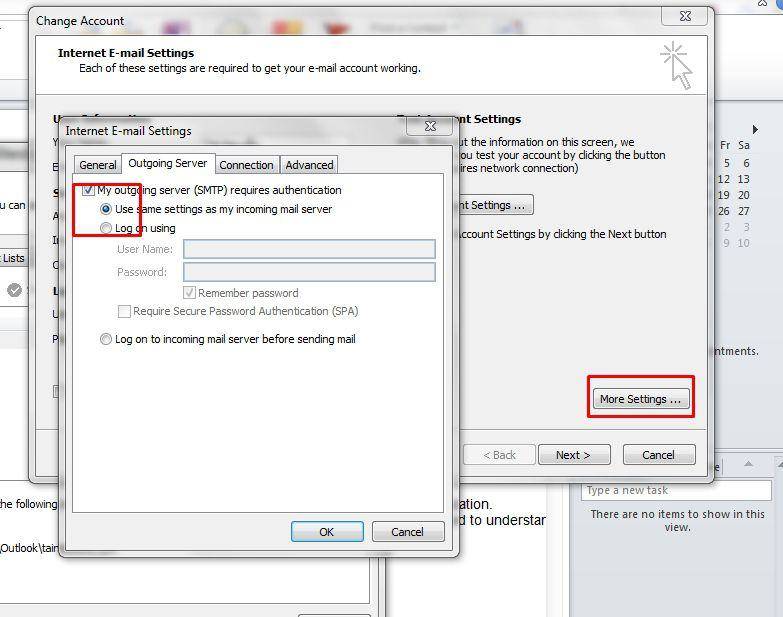
Continue to the Outgoing Server tab and check the box for authentication (as shown in the image).
See more products: Buy advertising accounts
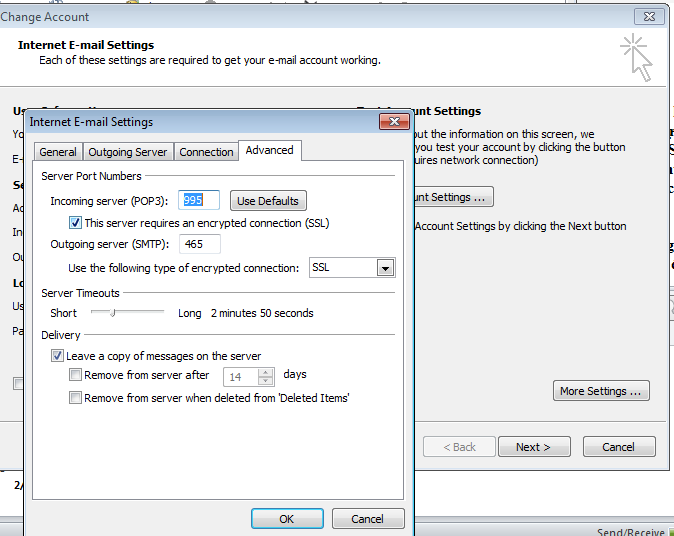
Next, click on the Advanced tab to configure email port settings.
-
For POP3, use port 995
-
Check the box for SSL
-
For SMTP, use port 465
If the test fails, try again using the following settings: POP3: 995 (or 993), TLS, SMTP 587.
If it still does not work, it may be because Google has detected suspicious login activity on your Gmail account. In this case, go to the admin page and disable login challenge for that user. Refer to the guide for details.
At this point, all configuration steps are complete. Click the Test Account Settings button to verify that email sending and receiving is functioning correctly.
Some Configuration Details for Outlook with Gmail Google Workspace
Incoming Mail Server (IMAP)
-
Server:
imap.gmail.com -
SSL Required: Yes
-
Port: 993
Outgoing Mail Server (SMTP)
-
Server:
smtp.gmail.com -
SSL Required: Yes
-
TLS Required: Yes (if available)
-
Authentication Required: Yes
-
SSL Port: 465
-
TLS/STARTTLS Port: 587
Full Name or Display Name: Your Name
Account Name / Username / Email Address: Your full email address
Password: Your Gmail password
Notes When Configuring Outlook for Gmail with Google Workspace
To ensure a smooth and efficient setup of Outlook for Gmail via Google Workspace, keep the following points in mind:
System Requirements:
-
Operating System: Outlook for Gmail with Google Workspace works only with Microsoft Outlook 2013 or later.
-
Internet Connection: A stable internet connection is required to sync emails, calendars, and contacts.
Google Workspace Account:
-
You need a Google Workspace account with access to Gmail.
-
Enable IMAP in the Google Workspace Admin Console for your Gmail account.
Installing Outlook and Gmail Google Workspace Configuration Tools:
-
Download and install Microsoft Outlook if you haven’t already.
-
Install any necessary add-ons or tools for Gmail configuration from Microsoft Store or Office 365.
Add Google Workspace Gmail Account to Outlook:
-
Open Outlook and select Add Account.
-
Choose Google Account and enter your Gmail Google Workspace address.
-
Enter your Google Workspace password and click Next.
-
Follow the on-screen instructions to complete the setup.
Configure Sync Settings for Outlook and Gmail Google Workspace:
-
Once added, Outlook will automatically sync emails, calendars, and contacts.
-
You can modify sync settings in File > Options > Advanced > MAPI Connector Settings.
Conclusion
We hope this guide and the above notes help you successfully configure Outlook for Gmail with Google Workspace and make the most of its features.
If you need the most reputable payment method and advertising account provider, you can message the fanpage buybm365.com-Ads to receive advice from HT Media. In addition, you can follow the articles. Latest articles related to our Digital Marketing.





