


How to handle when Google warns that your website contains malicious code or malware, or is fraudulent
When your website is injected with malware or hacked to include malicious scripts, it can harm users. In such cases, browsers like Google Chrome or Firefox will display a warning if the site you’re trying to access is suspected of phishing or contains harmful software.
When the phishing and malware detection feature is triggered, you might see one of the following messages:
-
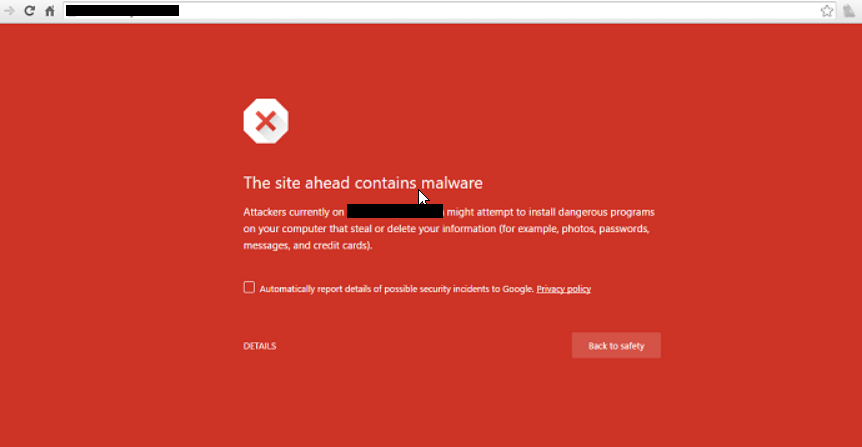
The site ahead contains malware: The site you’re trying to visit may attempt to install malware on your computer.
-
Dangerous: Malware ahead: The site you’re trying to access may contain malware.
-
Deceptive site ahead: The site you’re trying to access is suspected of phishing.
-
The site ahead contains harmful programs: The site you’re trying to access may trick you into installing software that negatively impacts your browsing experience.
-
Or a warning may simply appear as shown in the image below:
See more products: Buy advertising accounts
This situation can damage your reputation with customers and negatively affect Google’s evaluation of your website. To resolve this issue, you must complete two steps: Remove the virus/malware and re-report the site to Google. Here are the steps to fix this error:
Step 1: Review and scan your code
-
Scan and remove malware from your hosting server
-
Scan and remove viruses from the administrator’s computer (malware can spread from an infected admin device when logging in to post content)
-
Review and clean your code to ensure it is malware-free
-
View the page source to look for and remove suspicious scripts
-
Common files that are often targeted include:
index.php,.htaccess,header.php, and files inside plugins and themes
Step 2: Once you’ve completed Step 1, submit a request to Google to remove the warning from your website by accessing Google Webmaster Tools:
Tool: https://www.google.com/webmasters/tools/
Add a property:
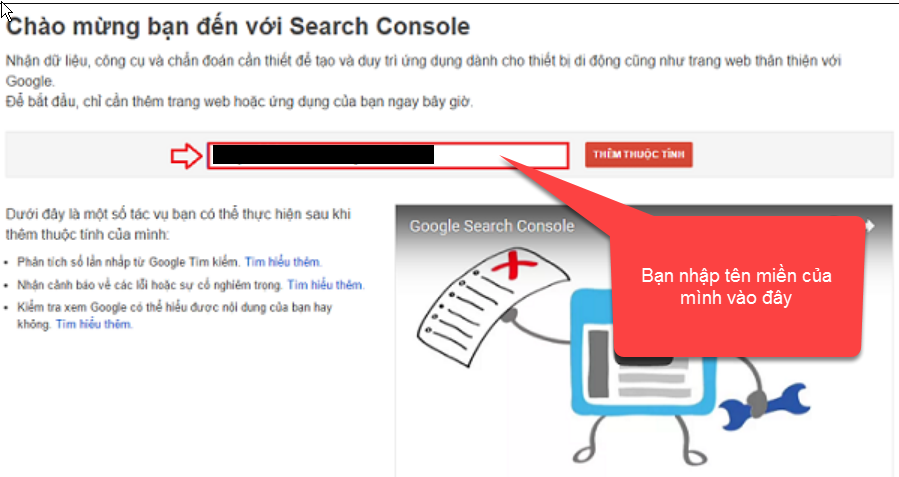
Then verify domain ownership with Google by:
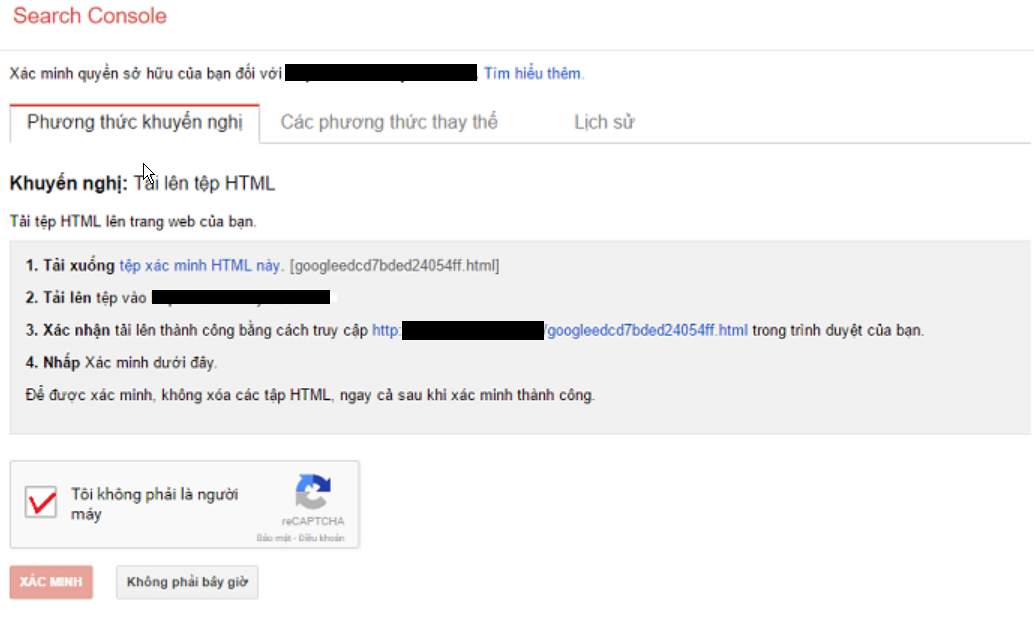
There are several ways to verify ownership. One simple method is to choose the HTML file upload option. Download the file with a name like google........html and upload it to the root directory of your website’s hosting.
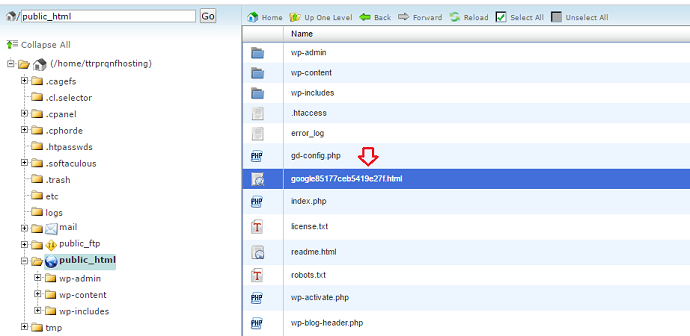
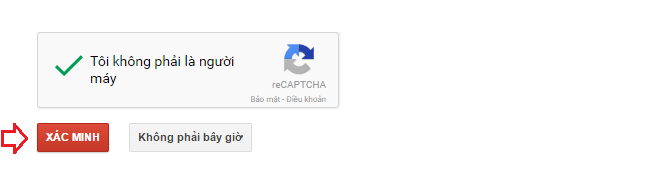
After uploading, go back to the Google Webmaster Tool page and click Verify.
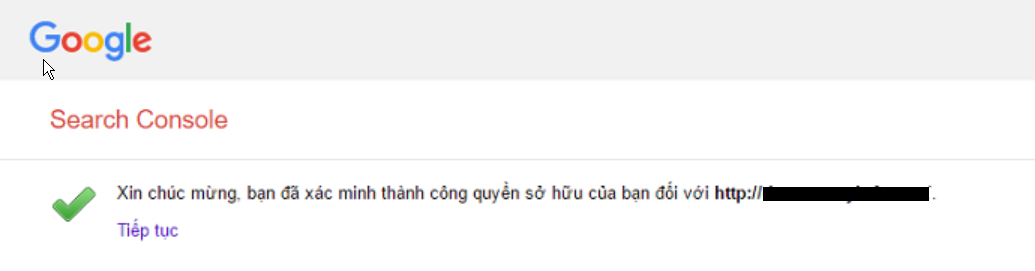
Successful verification result:
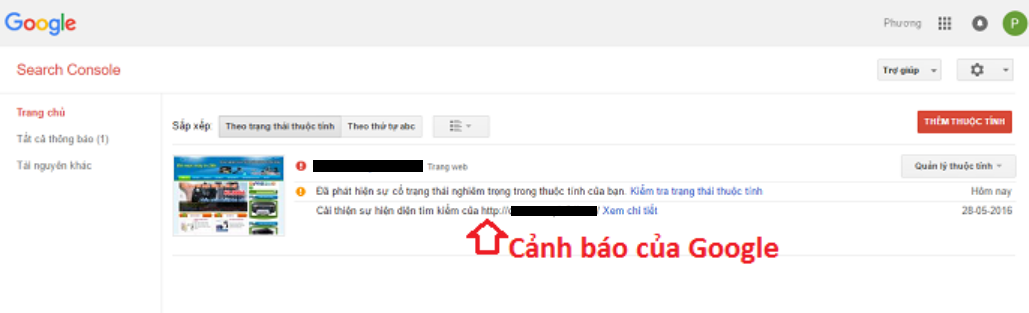
Once verified, return to the homepage of Google Webmaster Tools and you will receive a warning message about the malware.
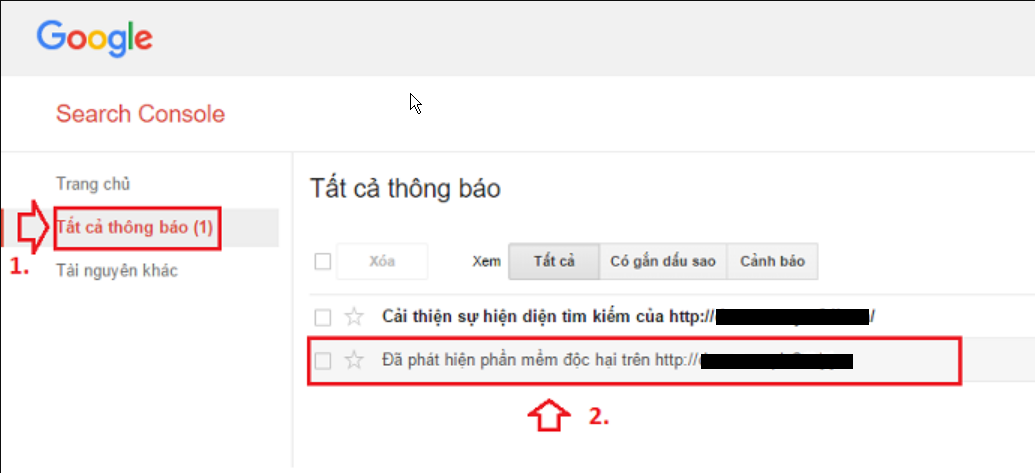
See more products: Buy advertising accounts
Now it’s time to submit a review request to Google:
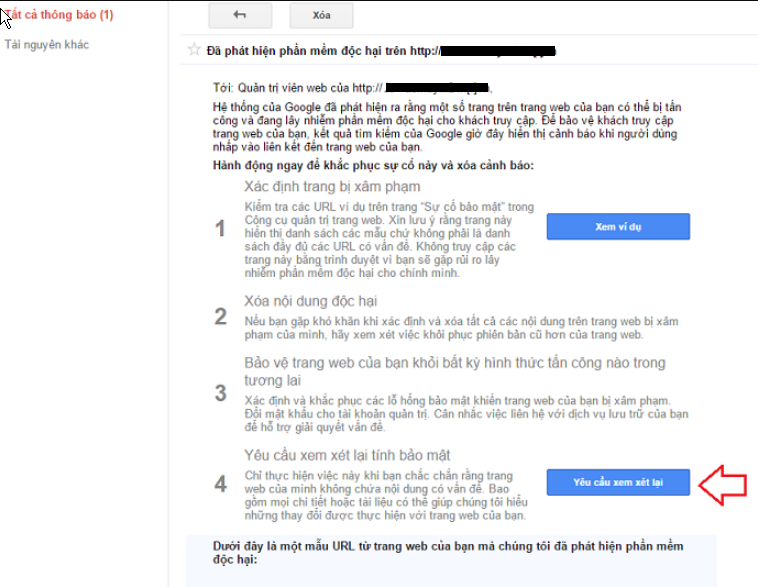
Tick the checkbox: “I have fixed these issues”
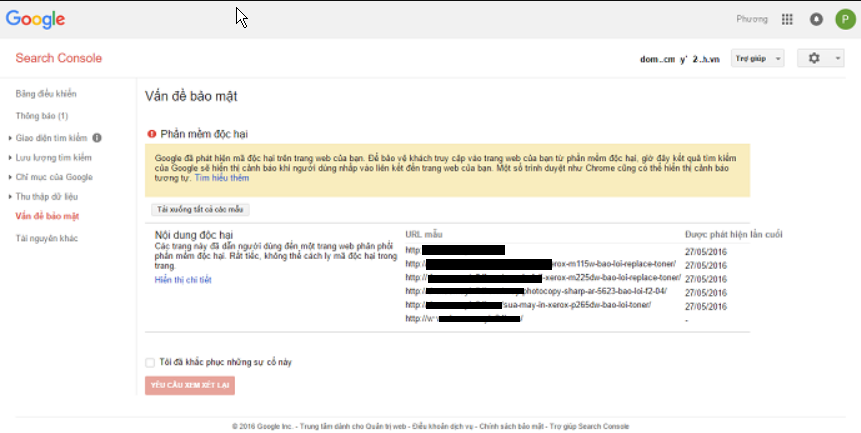
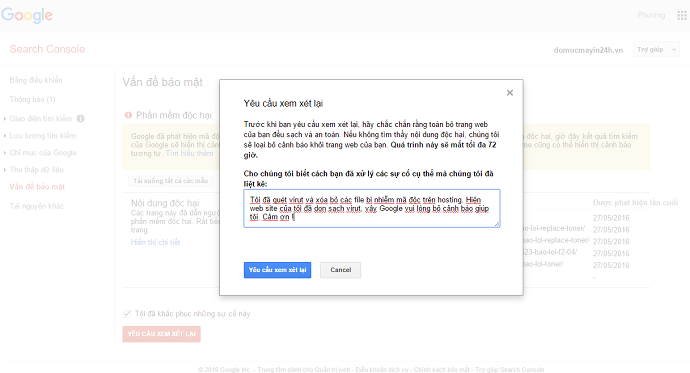
Enter the required information:
Wait for a few days and you’ll receive a notification from Google.
Google will review the site and notify you. If your website’s code still contains viruses or malicious scripts, the request will be denied and you’ll receive a message like the one below:
At that point, you must return to Step 1, review your website code again, completely remove all malicious code and harmful scripts, and then resubmit the request to Google.
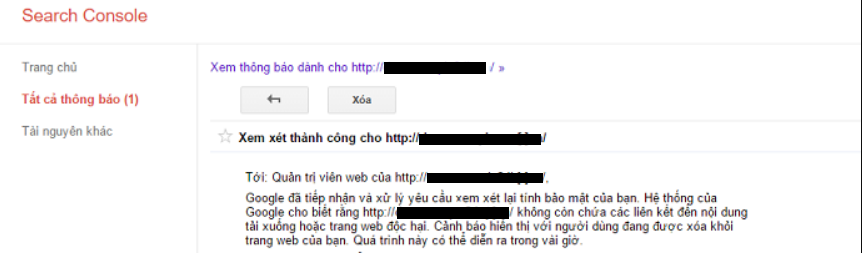
Successful result: You will receive a confirmation from Google.
That means the issue has been resolved. After a few hours, revisit your website and the warning should no longer appear.
If you need the most reputable payment method and advertising account provider, you can message the fanpage buybm365.com-Ads to receive advice from HT Media. In addition, you can follow the articles. Latest articles related to our Digital Marketing.





