


How to cancel approval on Facebook when logging in simply
Although considered a process that helps users protect their accounts and avoid unauthorized access, Facebook’s login approval requirement can prevent users from accessing their accounts immediately, causing interruptions in usage. In the article below, let’s explore how to disable login approval on Facebook.
What is Facebook login approval?
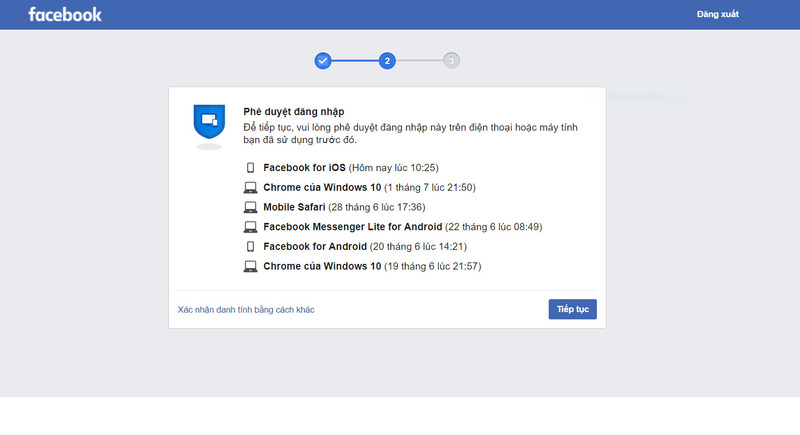
Login approval on Facebook, also known as two-factor authentication (2FA), is an extra security feature designed to protect user accounts. When this feature is enabled, after entering the password, you will also need to provide a verification code from a text message (SMS), an authenticator app like Google Authenticator or Duo Mobile, or approve the login from another device.
 See more products: Buy advertising accounts
The Facebook login approval feature was introduced to strengthen the “security barrier” protecting users’ accounts, offering the following key benefits:
-
Account security: This feature is considered an effective way to keep your Facebook account secure. Only with user approval will login attempts from new devices or unfamiliar locations be accepted.
-
User authenticity verification: When logging in from a new browser or device, Facebook will request account verification. This is seen as a necessary step to confirm the user’s identity.
-
Suspicious activity: If your account shows signs of being hacked or compromised, Facebook may temporarily block access until you verify your identity and complete the required security steps.
When should you disable Facebook login approval?
In some specific situations, users may consider disabling Facebook login approval:
-
To reduce complex steps during the login process.
-
The phone number/email used for login approval is no longer in use.
How to disable Facebook login approval on mobile and computer
To disable Facebook login approval, you can follow these steps:
1. On Mobile
-
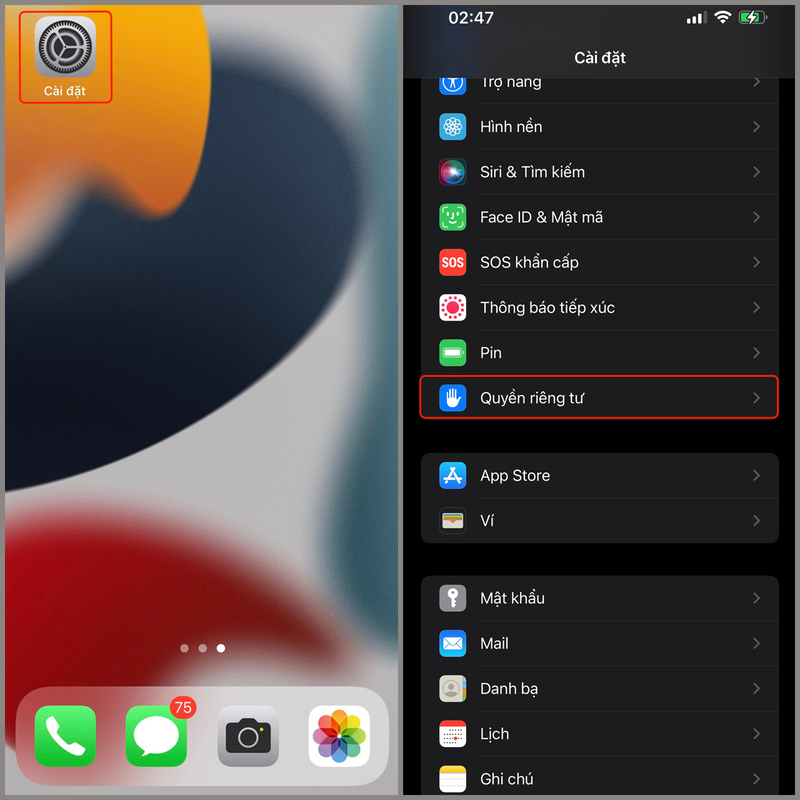
Step 1: Tap the ☰ icon in the top right corner.
-
Step 2: Select “Settings & Privacy” > “Settings”.
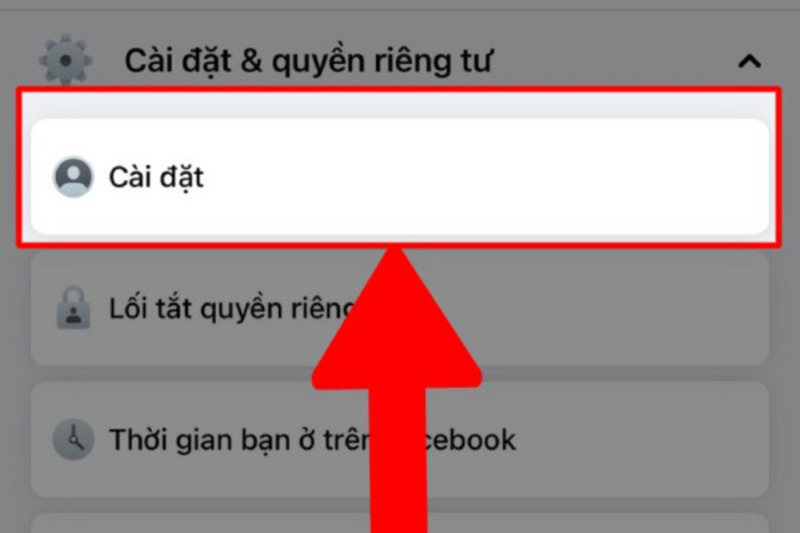
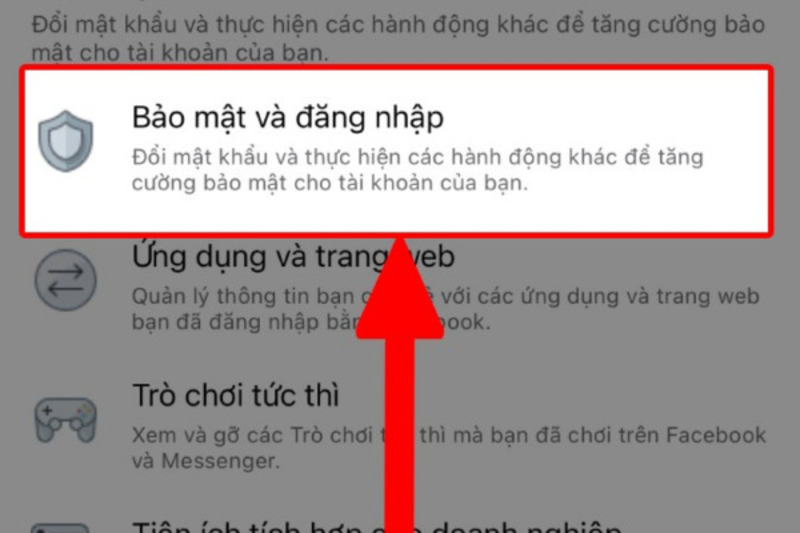
Step 3: Find and select “Security and Login”.
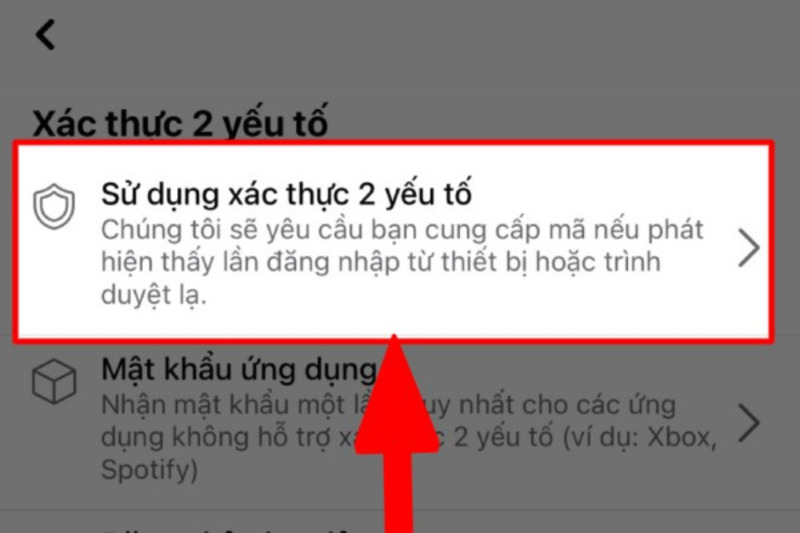
Step 4: Tap “Use two-factor authentication”.
Step 5: Locate the “Two-factor authentication” option > tap “Turn off”.
 See more products: Buy advertising accounts
Step 6: Tap “Turn off” again to complete the process.
2. On Computer
To disable login approval on a computer, log in to your Facebook account and follow these steps:
-
Step 1: Go to “Settings”.
-
Step 2: Select “Security and Login”.
-
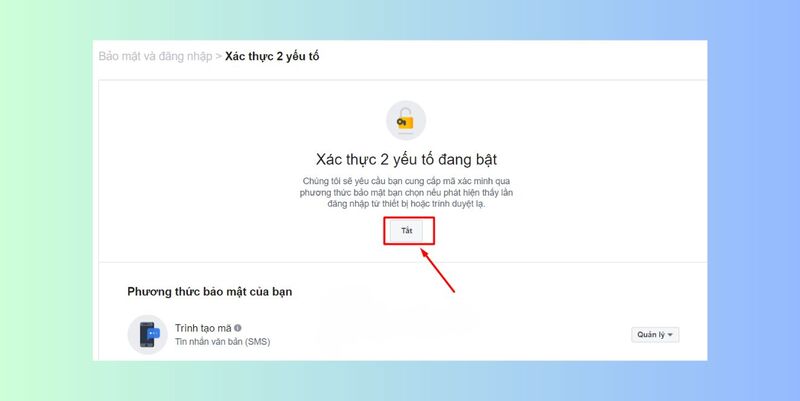
Step 3: In the “Login Approval” section, click “Edit”.
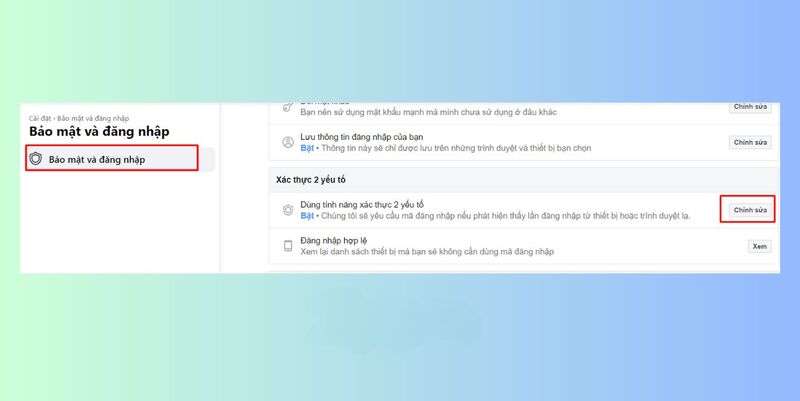
- Step 4: Uncheck the box “Require a confirmation code” to turn off login approval.
Tips to increase Facebook account security
Disabling Facebook login approval may reduce your account’s security. However, you can still protect your account using the following tips:
1. Use a strong password
Use a complex password that includes uppercase letters, lowercase letters, numbers, and special characters. Avoid using easy-to-guess passwords like birthdates, names, or personal information that others could figure out.
2. Enable two-factor authentication
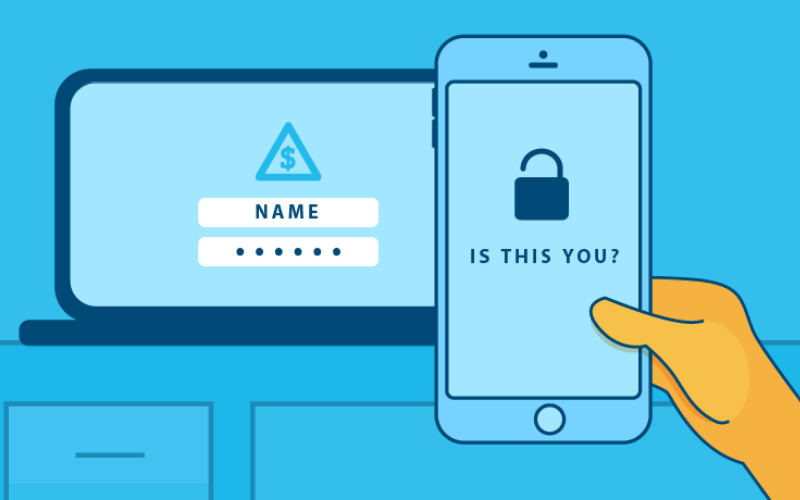
One effective way to enhance your account security is to enable two-factor authentication. When activated, you will need to enter a verification code sent to your phone/email whenever logging in from a new device, preventing unauthorized access.
3. Regularly review login activity
Facebook offers a feature to view login history, allowing users to monitor devices and locations that have accessed the account. If you spot suspicious activity, change your password immediately and review the list of logged-in devices.
4. Keep browsers and software up to date
Ensure your operating system, web browser, and related applications are updated to the latest versions. These updates help patch security vulnerabilities and reduce the risk of malware attacks.
5. Review connected apps and permissions
Check the list of apps and websites that are connected to your Facebook account. If you no longer use an app or are unsure about its security, revoke its access immediately to protect your account.
6. Be cautious of suspicious links, emails, and messages
Always verify the source of any emails or messages you receive, especially those that ask for personal information or login credentials. Avoid clicking on unclear or suspicious links to prevent the risk of account theft.
7. Limit sharing of personal information
Avoid publicly sharing sensitive information such as your phone number, home address, or financial details on Facebook. Doing so helps protect you from identity theft or online scams.
Conclusion
This article has guided you through a simple and quick way to disable login approval on Facebook. We hope the information provided has been helpful to you. Don’t forget to follow our upcoming articles for more up-to-date tips and information!
If you need the most reputable payment method and advertising account provider, you can message the fanpage buybm365.com-Ads to receive advice from HT Media. In addition, you can follow the articles. Latest articles related to our Digital Marketing.





