


Google Shopping Extensions for Best CTR Boost
After successfully setting up Google Shopping ads, you begin tracking performance and making appropriate adjustments. However, there is a way to immediately increase your click-through rate (CTR) for products by adding relevant promotional extensions. What are promotional extensions? After users search for products, Google Shopping ads display images of related products, along with the product name and price. But what if you want to display an additional promotional line like “50% Off,” “Buy 2 Get 1 Free,” “Free Shipping,” etc.? How can you do that?
Luckily, Google provides two promotional extensions: Promotional Text and Promotional Feeds (also known as Special Offers). These extensions help make your ads more attractive, encouraging users to click on your products. Of course, you should first thoroughly read the promotional policies for Google Shopping ads and follow them. Once you’re familiar with the rules, let’s start setting up promotional extensions for your products.
1. Promotional Text (Text-based Promotional Extension)
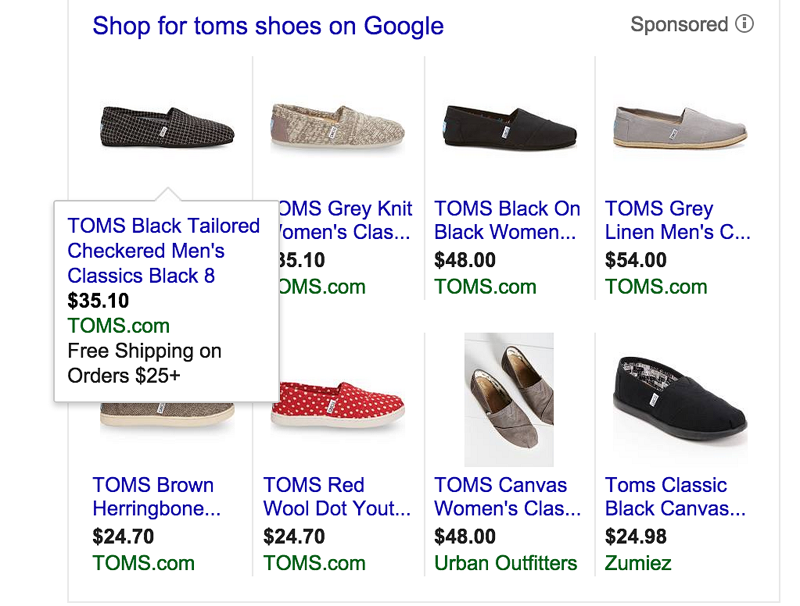
The promotional text appears when customers hover their mouse over the product image. (Please note that the promotional text will only appear when the cursor is over the product image.) They will see the product name, price, and your website domain. Directly below the domain, customers will see the promotional text if you’ve added this extension to your ad template.
There are four promotional options you can use:
-
Amount Off: For example, “50K Off,” “100K Off.”
-
Percent Off: For example, “20% Off,” “Up to 50% Off.”
-
Free Gift: For example, “Buy Mooncakes, Get Free Condoms.”
-
Free Shipping: For example, “Free Shipping on Orders Over 500K.”
In the example below, the shop owner added the promotional text “Free Ship on Orders Over 25$.”
This promotional extension is easy to add and will apply to all products within a specific ad group.
See more products: Buy advertising accounts
How to Add Promotional Text to Your Ads
To add promotional text, click on your Shopping campaign, then click on the Ad Group.
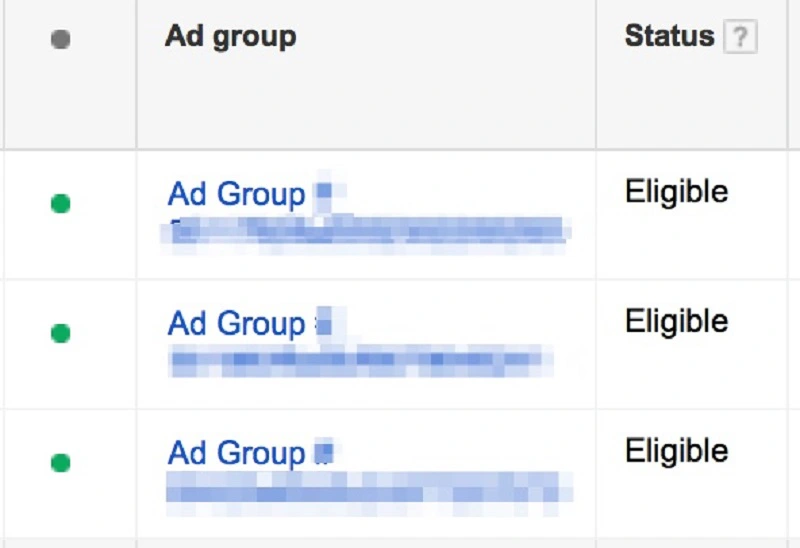
Next, click on the Ads tab. Then click on the name of the ad to add the promotional text. Note that this promotional content will apply to your entire product listing ad.
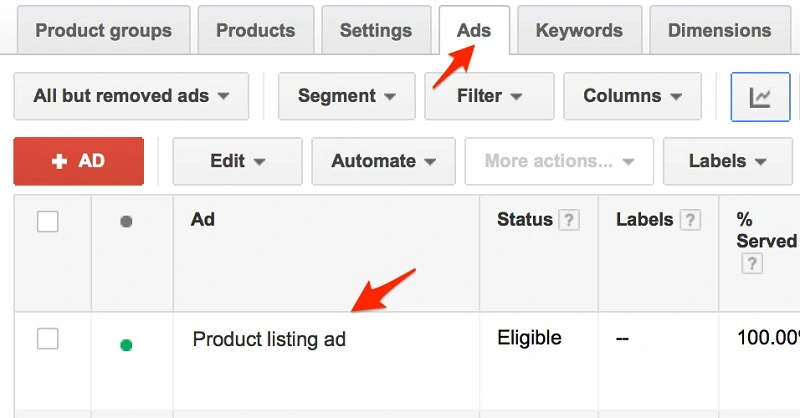
With a 45-character limit, try to fine-tune the promotional content to be concise and call-to-action driven. It will be a highlight that improves the clicks on your ads. Advertising experts recommend focusing on shipping policies. For example, offering free shipping on orders over 50K. Typically, customers are more likely to purchase when free shipping is offered.
2. Special Offers (Promotional Feeds)
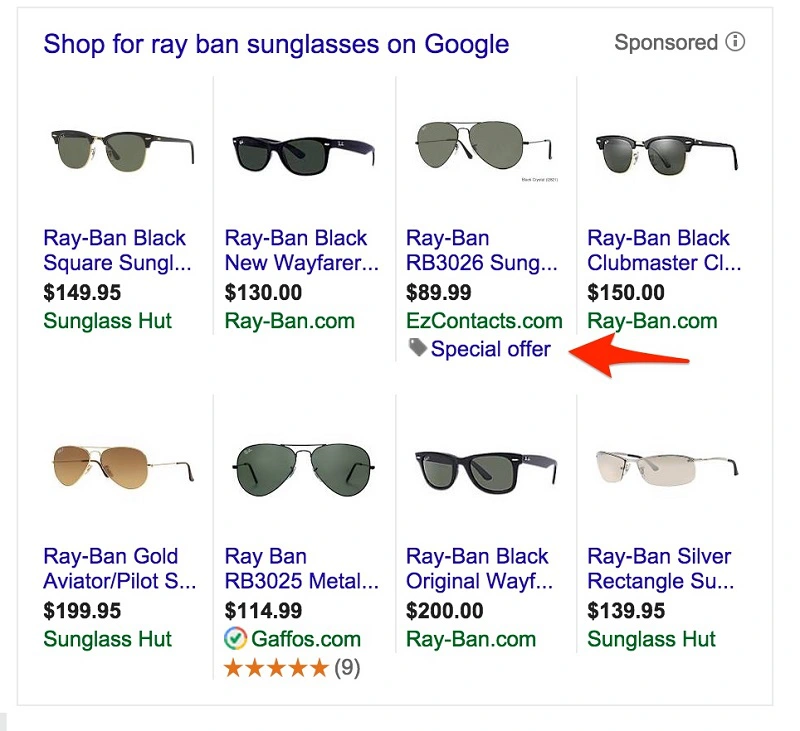
The Promotional Feeds or Special Offers extension allows you to display a small title (with a tag icon) beneath the website domain. When hovering over the icon, a detailed description of the offer appears, including a coupon that customers can use during checkout.
See more products: Buy advertising accounts
To create a special offer title, you need to create an ad feed.
First, contact your Google AdWords representative by filling out the request form. Then, use the Promotions tool in Google Merchant Center to create special offers. However, using the Promotions tool is easy when you have a few promotions. If you have many different promotions, it’s best to upload a spreadsheet with all the promotions in the feed.
To do this, click on the +Data Feed button in the data feeds section and select the Promotion Type from the drop-down menu. The Special Offers extension has the ability to grab attention and significantly improve the click-through rate. These promotional strategies also lead to better conversion rates. For more information on setting up ad feeds, you can refer to the help guides in the Google Help Center.
. Product Reviews
Product ratings can significantly impact the overall performance of your shopping campaign. According to BrightLocal, 79% of consumers trust product reviews as much as personal recommendations.
Recently, Google Think highlighted that searches with the term “best” have grown by 80% over the past two years. When you add the word “best” to your search query, Google will display Shopping results with top-rated product reviews. For example, when customers search for a product like “Basketball Goal,” only one or two sellers may have product ratings displayed. This can give them a significant competitive edge and attract more clicks.
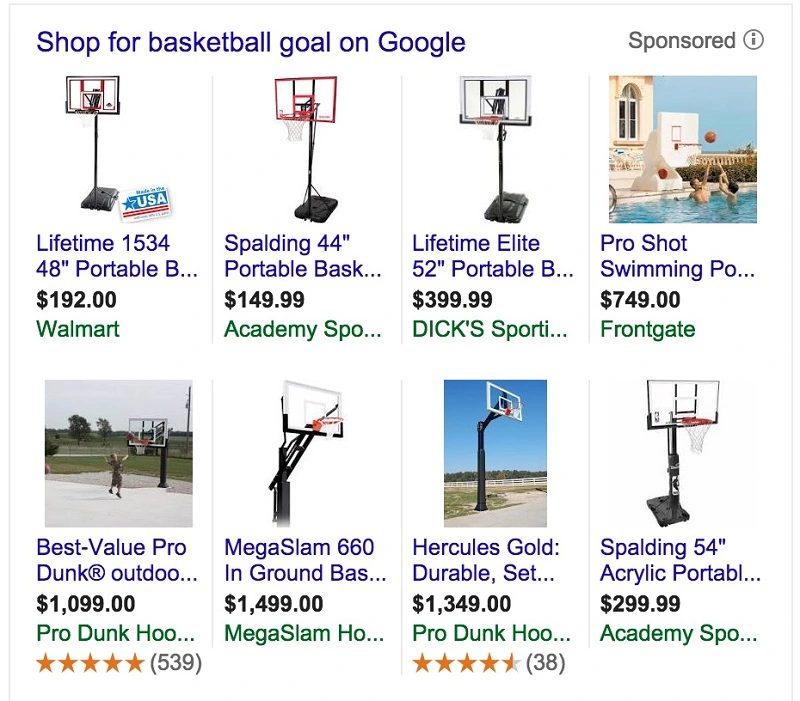
Of course, for products without reviews displayed, it will be much harder to compete for clicks, especially when competing products are displayed alongside them.
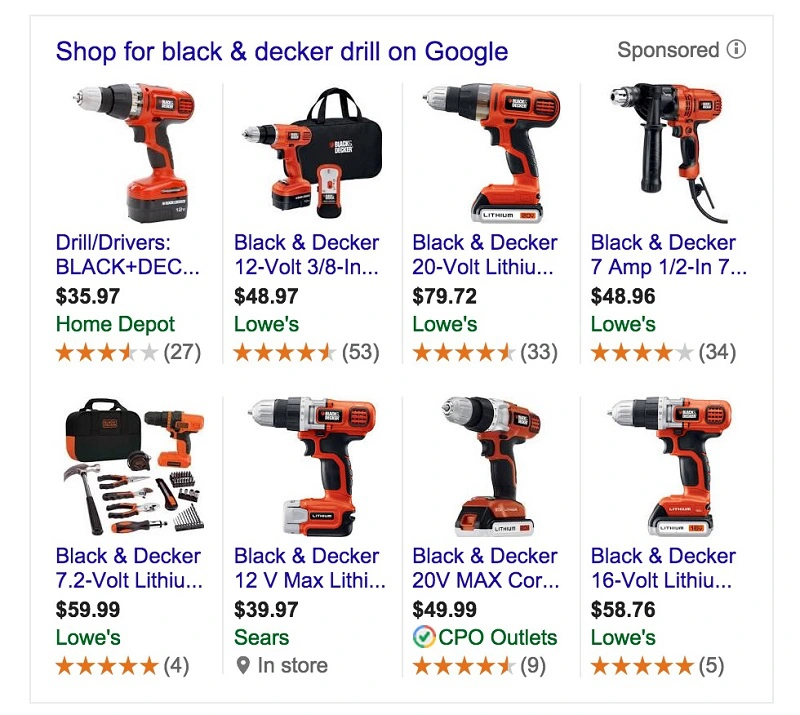
To enable product review displays, you will need approval from Google. Start by completing and submitting the Product Rating Interest Form. After submitting the form, Google will contact you within 10 to 15 days (or possibly longer) before taking the next steps to display the product ratings alongside your shopping ads.
5. Third-party Google Shopping Extensions
If you use third-party tools to collect reviews, Google integrates with several tools, including Bazaarvoice, Ekomi, PowerReviews, Shopper Approved, Yotpo, and other tools.
If you need the most reputable payment method and advertising account provider, you can message the fanpage buybm365.com-Ads to receive advice from HT Media. In addition, you can follow the articles. Latest articles related to our Digital Marketing.





