


Facebook Ads Manager – A Complete A-to-Z Guide
Facebook Ads Manager – A Complete A-to-Z Guide
Facebook Ads Manager provides everything you need to optimize your ads. In this article, we will share how to get familiar with Facebook Ads Manager, including how to create, manage, analyze, and generate in-depth ad reports. Additionally, we will introduce some special features of Facebook Ads Manager to help you maximize the effectiveness of your Facebook Ads campaigns.
II – How to Create a Facebook Ads Account
2.1. Create a Business Manager Account
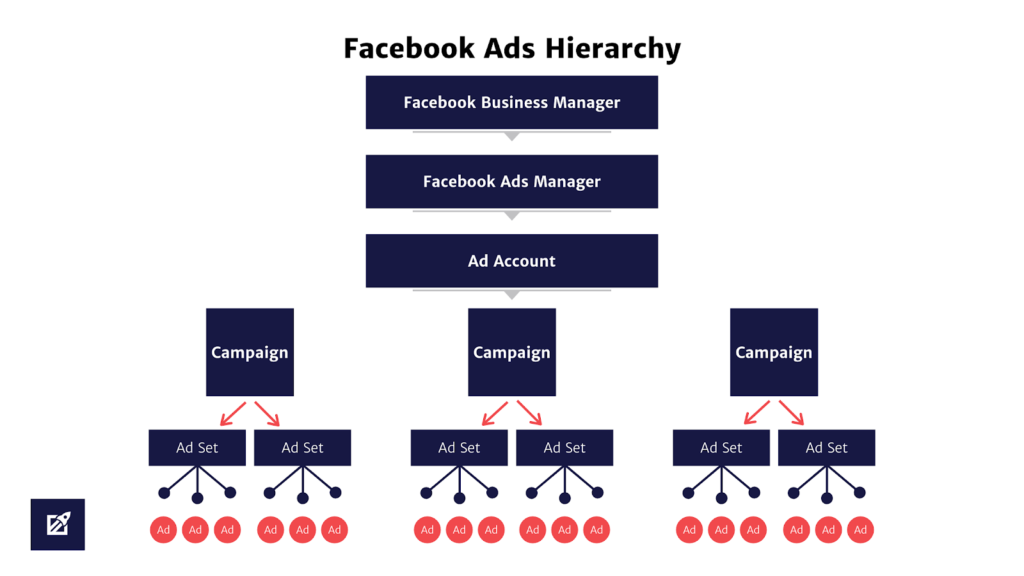
Distinguishing between Facebook Ads Manager and Facebook Business Manager: These are two tools that are often confused.
- Facebook Ads Manager is dedicated solely to managing ad campaigns.
- Facebook Business Manager is a platform for managing Pages and ad accounts.
- Go to business.facebook.com/create.
- Click on “Create Account”.
- Enter your business name, your name, and your work email address, then click “Next”.
- Fill in your business details and click “Submit”.
- Once your Business Manager account is set up, you can easily create an advertiser profile.
2.2. Create an advertising account (Ads Account)
- In Facebook Business Manager, go to the “Ads Accounts” section.
- Click “Add” and select “Create a New Ads Account”.
- Next, you can name your ad account. It’s best to use your business name. Choose your time zone and currency.
- If you are creating an ad account for your business, select “My Business” in the next step.
- Grant all relevant team members access to the ad account. Only members with admin access can set up payment information.
- Set up payment information. Add your company’s credit card details and other related information.
III – How to Access Facebook Ads Manager
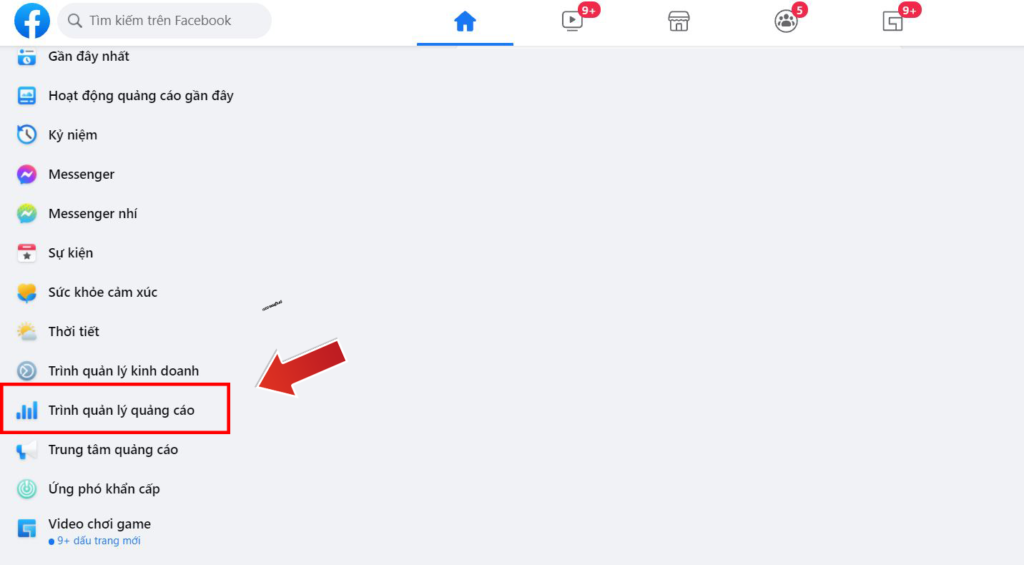
To access Facebook Ads Manager, you can go to the left sidebar of any Facebook page and click on the dropdown arrow, then select “Facebook Ads Manager”.
IV – How to Navigate and the Functions in Ads Manager
To navigate Facebook Ads Manager effectively, you will need to understand the three different levels of navigation:
- Navigate between campaigns, ad sets, and ads.
- Access the Facebook Ads Manager menu to view events, audiences, and payment information.
- Edit columns and the analytics dashboard for ad campaign reports.
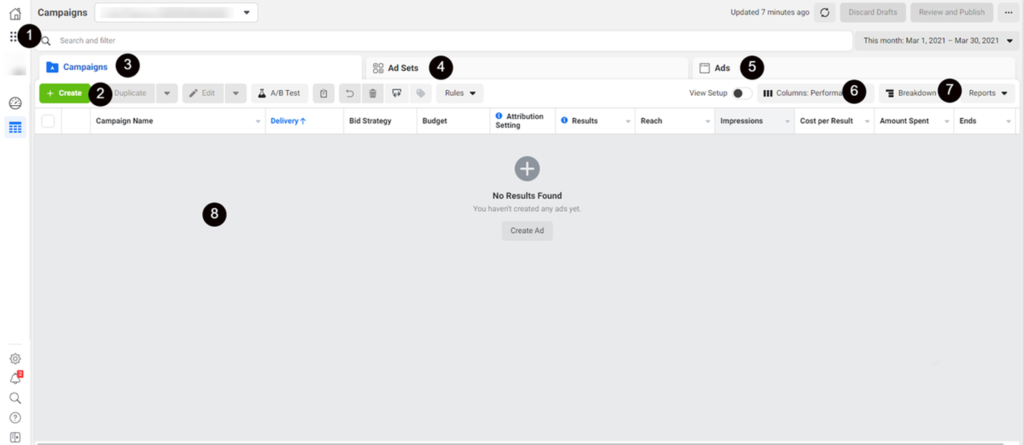
On the Dashboard, you’ll need to focus on the following key sections:
1, Main Navigation Menu: Navigate to other tools such as Business Manager or Audiences.
2, Create New Campaign: Click here to create new ad campaigns.
3, Campaign View: Provides information about all your Facebook campaigns once you start running them.
4, Ad Set View: Provides information about each ad set so you can compare them.
5, Ad View: Provides information about each ad you’re running.
6, Columns: Toggle different columns to display various metrics about your campaign, ad set, or ad.
7, Campaign Analytics: Analytics allow you to filter results by time, delivery, or actions.
8, Data Fields: Analytics allow you to filter your results by time, delivery, or actions.
V – Facebook Ads Manager User Guide
5.1. Creating Ads with Facebook Ads Manager
- Choose your campaign objective.
- Name your ad campaign.
- Select special ad categories, A/B testing, and campaign budget optimization.
- Set up your budget, schedule, and bid.
- Set up audience targeting.
- Choose your ad placements.
- Set up your Facebook ad.
5.2. Editing Ads with Facebook Ads Manager
To edit multiple campaigns, ad sets, or ads, check the boxes in the first column and click “Edit” on the navigation bar.
5.2.1. Campaigns
Here, you can edit the campaign name, set a spending limit for the campaign (optional), and toggle the campaign on or off.
5.2.2. Ad Sets
Here, you can edit the name, placements, budget and schedule, target audience, optimization and delivery (i.e., what the ad set is optimized for), and toggle the ad set on or off.
5.2.3. Ads
Here, you can edit the ad name, destination (i.e., the Facebook Page where your ad originates), ad content (images, text, links, call to action), and toggle the ad on or off.
5.3. Facebook Ad Reports
Using Facebook Ads Manager filters, you can see how your ads are performing relative to your goals and create tidy reports for your team.
5.3.1. Ad Filters: Find Relevant Campaigns, Ad Sets, or Ads
Facebook provides four quick ways to filter and search for specific ads or ad sets:
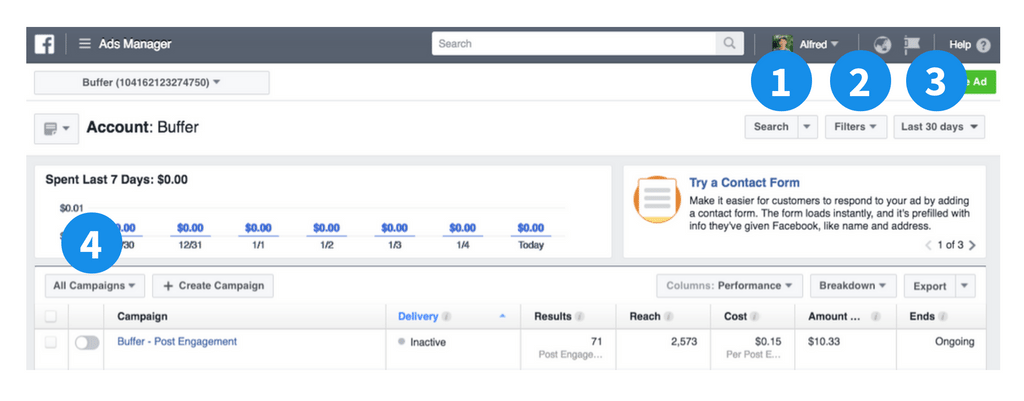
1, Search
2, Filters
3, Date Range
4, Ad Hierarchy
5.3.2. Statistical Filters: Get Key Data for Ad Reporting
The two main ways to customize your report table are through Columns and Analytics.
“Columns” help you quickly find relevant data. You can scroll down to “Customize Columns” to uncheck or select additional metrics (columns) as needed.
You can gain deeper insights into your Facebook ads by further breaking down the data. You can break down the data by:
- Delivery (e.g., age, location, or platform)
- Action (e.g., converting device, destination, or video view type)
- Time (e.g., day, week, or month)
You can choose up to one criterion from each section.
5.3.3. Export, Share, and Save Facebook Ad Reports
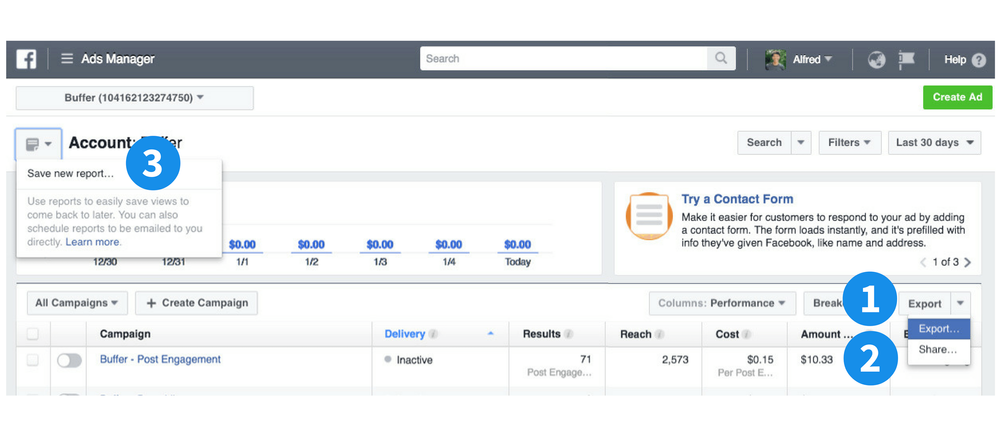
1, Export: You can download the data as an Excel or CSV file.
2, Share: This option provides you with a link that you can share with others who have access to the ad account.
3, Save: You can easily save data views to return to later or schedule an email to automatically send you reports daily, weekly, or monthly.
5.4. Analyzing the Performance of Facebook Ads
Facebook Ads Manager allows you to dive deep into each campaign, ad set, or ad, providing more detailed insights, such as results over time and demographic analysis.

– Detailed Chart
The charts visualize advertising data, giving you an overview of performance, demographics, and locations.
– Summary Section
The summary section provides an overview of your ad, including distribution, goals, today’s spend, and the overall schedule. It also includes options to toggle the ad on/off, edit the ad, create a similar ad, or delete the ad.
– Reporting Table
The reporting table is similar to the one on the main dashboard. The only difference is that it doesn’t show all the ads across Facebook. If you’re viewing a campaign, it will only show the ad sets or ads within that campaign. If you’re viewing an ad set, it will only show the ads within that ad set. If you’re viewing an ad, it will only show that particular ad.
Important Metrics in Ads Manager
- Results: This is the number of conversions or goal completions you are receiving.
- Cost per Result: This is the amount you spend to acquire a new lead, customer, etc. If your goal is conversions, this will be the cost per conversion.
- Click-Through Rate (CTR): This is the number of clicks on a link divided by the number of impressions. If your CTR is under 1%, it indicates that your ad might not be engaging enough or it’s not targeting the right audience.
- Ad Frequency: This number shows how many times an ad is displayed to a person (Impressions ÷ Reach). If your frequency is too high, people might feel frustrated from seeing the same ad too often.
- Quality Ranking: A score given by Facebook to show how relevant your ad is to your target audience.
VI – Some Useful Features Outside Facebook Ads Manager
Audience Insights: A tool that helps you learn more about your target audience, including demographics, location, and behavior.
Power Editor: Power Editor is designed for users who want to create a large number of ads while on the go and want more specific control over how ads are delivered.
Facebook Pixel: A small piece of code that allows you to track actions people take on your website and create more effective Facebook ads.
VII – Relevant Resources
Here are some related resources that you can explore to deepen your understanding of Facebook Ads:
- Facebook Ads Manager Mobile App: Facebook has developed a mobile app for Facebook Ads Manager for both iOS and Android. With this app, you can create ads, manage campaigns, receive performance notifications, and track ad metrics.
- Facebook’s Creative Hub: Facebook’s Creative Hub is one of the newest tools, allowing you to create ad models, preview, collaborate, and share ideas with your team. It also features an “Inspiration Library” where you can explore how other businesses are using different ad formats.
- Facebook Advertising Insight: Facebook’s advertising insights offer in-depth articles that help you find new ways to leverage your ad data, both your own and others’.
- Facebook Blueprint: Facebook Blueprint is a learning platform that provides courses on how to effectively use Facebook Ads for the best results.
The features of Facebook Ads Manager allow you to manage, adjust, and optimize your ads to achieve specific goals. By mastering this tool and understanding Facebook’s advertising policies, you can easily optimize various factors to ensure your Facebook Ads are as effective as possible.
If you need the most reputable payment method and advertising account provider, you can message the fanpage buybm365.com-Ads to receive advice from HT Media. In addition, you can follow the articles. Latest articles related to our Digital Marketing.





