


8 ways to optimize Google Shopping advertising campaign
Do You Know How to Effectively Optimize Google Shopping Ads? The following article will share valuable experience to help you run Google Shopping ads that gain higher impressions than competitors and increase conversion rates effectively.
Google Shopping Ads appear in a slide format directly below the Google Search bar, and some ads may also display on the right-hand side of the search results page on desktop. Google Shopping is optimized for conversions by visually presenting complete product information in the ads, including:
-
Product image
-
Product title
-
Price
-
Ratings
-
Discounts (if any)
-
Vendor
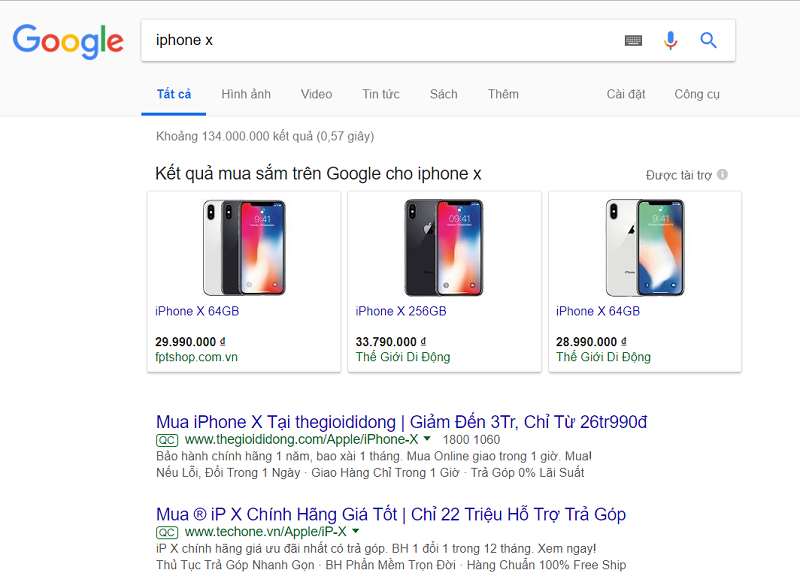
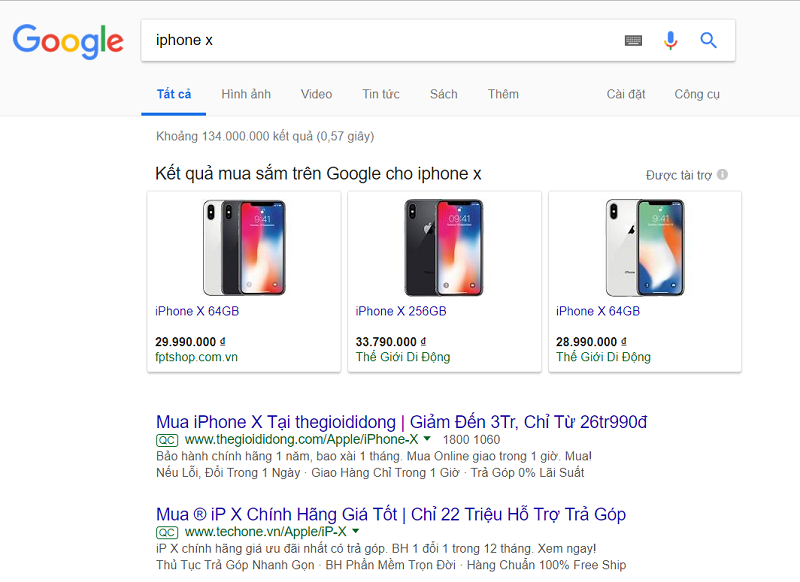
Example of Google Shopping ads display on the search results page.
Although Google Shopping is designed to optimize for conversions, not knowing how to properly optimize these ads can lead to significantly higher ad costs. The following 8 strategies will help you improve your campaign’s effectiveness while minimizing costs.
See more products: Buy advertising accounts
1. What Are Google Shopping Ads Based On?
They are based on Quality Score.
Quality Score is a brilliant initiative by Google to encourage advertisers to invest in optimizing landing pages to be user-friendly and helpful, instead of just pouring money into running ads. A high-quality score leads to more ad impressions, higher click-through rates (CTR), and greater user satisfaction upon landing on the destination page.
For text ads, Quality Score is measured based on three main criteria:
-
Your actual or expected CTR
-
Ad relevance
-
Landing page experience
Ad rank is calculated using the formula:
Quality Score x Maximum CPC = Ad Rank
This means a higher Quality Score can help reduce your advertising cost while still outranking your competitors.
However, unlike text ad campaigns—where you can immediately see the Quality Score for each keyword in Google Ads—Google Shopping Ads don’t display Quality Scores per product. But that doesn’t mean Shopping Ads don’t have a Quality Score.
The concept is similar, except for one difference: relevance. In text ads, relevance refers to how well the keyword matches the ad. In Google Shopping, relevance refers to how well the keyword matches your product feed. That’s why optimizing your product feed is crucial. Follow the steps below, and once your product feed is optimized, your Quality Score will improve, and CPC will drop accordingly.
2. Optimize Your Shopping Feed
2.1. Why Should You Optimize Your Feed?
The feed is where product data is stored in a format that Google can read and understand. Unlike keyword-based ads, Google Shopping ads don’t allow you to choose the specific keywords that trigger your ads. Instead, Google automatically pulls data from your product feed to determine which products match a given search query and displays those products on the Shopping section of the search results page.
This is very similar to SEO, making feed optimization a vital factor in helping Google’s search engine read, understand, and correctly display your products for relevant searches.
Optimizing your feed will help:
-
Show ads only for relevant queries
-
Increase CTR by matching buyer intent
-
Make management easier
Additionally, optimizing your feed improves your ad’s Quality Score, which in turn reduces your bid cost while maintaining good visibility and ranking.
2.2. Quality Score for Google Shopping Ads
Again, Quality Score is Google’s way of motivating advertisers to provide useful, user-friendly landing pages. A higher Quality Score brings more visibility, better CTR, and higher user satisfaction.
For text ads, it’s rated on:
-
CTR (or expected CTR)
-
Ad relevance
-
Landing page experience
The same Ad Rank formula applies:
Quality Score x Max CPC = Ad Rank
So, a better score = less cost + higher position.
Unlike text ads, you won’t see the individual Quality Score of each product in Shopping campaigns, but that doesn’t mean it doesn’t exist. The key difference is relevance:
-
In Google Ads: keyword ↔ ad relevance
-
In Google Shopping: keyword ↔ feed relevance
This is exactly why optimizing your product feed is so essential. Follow the guidelines above, and once your feed is optimized, you’ll boost your Quality Score and cut down on CPC.
2.3. How to Optimize the Google Merchant Center Feed?
Below are 10 product attributes that advertisers must have and standardize in order to run effective Google Shopping ads.
2.3.1. Product Title
The product title should be concise while ensuring it provides all relevant product information. The information must be accurate and detailed so Google can determine the product you are describing and display the ad to relevant search queries.
The product title is considered the most important element in the feed’s information fields. If you have experience with SEO, the product title in the feed is akin to the title tag on a website.
Here are some ways to optimize product titles for Google Shopping ads:
Do:
- Include the main keyword: What keyword do you want your Google Shopping ad to show up for when users search for it? Make sure to include that keyword in the product title.
Read more: How to target, research keywords, and analyze competition when running Google Shopping ads
-
Include the product name: This is essential. If the product has multiple names, use the most common one.
-
Include brand, color, gender, size: As mentioned earlier, longer and more detailed search keywords indicate users have a genuine interest in buying. For example, someone searching for “men’s adidas climate green t-shirt” is more likely to convert than someone searching for just “t-shirt.” Therefore, include details like brand, color, gender, and size in the title for your ad to show up for more specific search queries.
-
Place important details at the beginning: Similar to SEO title tag optimization, prioritize placing key details at the beginning of the product title. For example, if you sell printing products, the title should be “A5 Catalog, Glossy Paper, Portrait Format” instead of “A5 Catalog, Portrait Format, Glossy Paper.”
-
Provide technical specifications (if applicable): For some products, technical specifications should not be overlooked in the title. For example, if you’re selling tech products, include model, configuration, version, etc., in the title like “iPhone X 256MB Silver” or “Canon EOS 60D Kit 18-135mm IS.”
-
Remember to limit title length to 70 characters: While Google allows up to 150 characters for a product title, only the first 70 characters will show up in the Google Shopping search results. Ensure the title is within this limit for optimal display.
Don’t:
-
Stuff keywords: Avoid overstuffing keywords in the product title. Choose just one main keyword that most accurately describes the product.
-
Insert promotional content: For example: “A5 catalog print, get 50% off today only.” While you can run a promotional campaign, the product title is not the place for such content.
-
Use vague product titles: Don’t use generic titles that are unclear to users. For instance, instead of using “Sports Shoes,” use a more specific title like “Adidas Original Stan Smith S82251 Sports Shoes.”
-
Capitalize the product title unnecessarily: Random capitalizations in the title not only look unprofessional but can also result in your ad being disapproved by Google, unless the logo is part of the product.
2.3.2. Product Description
While the product description isn’t as crucial as the title, it plays an important role in the feed and serves as a basis for Google to collect information and determine which keywords are relevant for displaying your ad in the search results.
Here are some ways to optimize the product description:
Do:
-
Describe accurately and sufficiently: The product description doesn’t need to be excessively long; its purpose is to provide enough relevant information for users to make a purchase decision. Therefore, write clear and precise descriptions.
-
Add keywords: While the product title should only include one main keyword, the description is the place to include related keywords. These keywords in the description help Google identify suitable keywords to show your ad.
-
Place important information at the start: Just like with titles, prioritize placing the most important information at the beginning of the product description so users can easily understand the product details without reading through a long paragraph.
Don’t:
-
Stuff keywords: Just like with the title, avoid stuffing too many keywords in the description. Doing so won’t improve ad performance and may negatively impact the ad’s quality score. Each keyword should be used only once in the product description.
-
Write lengthy or exaggerated descriptions: When users click on your product, they don’t want to read a long essay about how amazing the product is. Avoid over-the-top explanations, as they could lead to high bounce rates. Keep the description simple, concise, factual, and clear.
2.3.3. Google Product Categories
Google has a comprehensive list of categories for you to classify your Google Shopping products into. This helps Google determine what you are selling and display your ad for relevant queries. You cannot create your own custom category; instead, you must choose from Google’s available categories. Here’s how to choose the appropriate category for your product:
-
Understand Google’s categories: You can download Google’s category list to understand how to classify your products correctly.
-
Choose the most accurate category: Each product can only be assigned to one category out of the 5,427 categories Google offers. Choose the most specific category that fits your product. For example, if you are selling phone cases, instead of just choosing “Electronics,” choose “Electronics > Communication Devices > Mobile Phones & Accessories > Phone Cases.”
-
Link product types for bulk products: In the Google Shopping admin panel, you can create a link between your website’s product categories and Google’s product categories with just one click.
2.3.4. Product Type
As mentioned earlier, the more accurately you choose the product category, the easier it is for Google to identify what you are selling. However, if you’re having difficulty selecting the right category, the “product type” field becomes extremely important. While “product_type” is an optional field, it’s recommended to complete it so Google has more data about your product, especially if you can’t find a detailed category for the product.
-
Use website category paths: If you can’t find a matching product category in Google’s list, enter the category path from your website. For example, “Cars > Trucks > Accessories > Door Handles.” This helps Google understand that the product is a door handle for trucks.
-
Add descriptions if needed: For example, if the product is in the “Door Handle” category but lacks more detailed categories, you can add parent categories like “Cars > Trucks > Accessories > Door Handles” to clarify further.
2.3.5. Product Images
Images are one of the most important factors in encouraging users to click on your ad.
-
Show full product in the thumbnail image: If the image doesn’t showcase the product clearly, users won’t be able to see it properly, reducing the click-through rate.
-
Use a white background: Google requires the use of images with a white background for Google Shopping ads.
-
No text, watermarks, or logos: Images with text, watermarks, or logos will be disapproved for ads unless the logo is printed directly on the product.
-
Use compelling images: Use well-lit, attractive images that encourage customers to click and buy.
See more products: Buy advertising accounts
2.3.6. Price
While an attractive image can help attract customers, the price is what will determine whether they click on the ad or not. If the products you’re selling are highly competitive on price, and your prices aren’t competitive, Google Shopping ads are less likely to be effective, and you may even incur higher costs.
However, if your product is unique, not widely available in the market, or clearly differentiated from competitors, the price may not be as important. Even if your price is higher than others, you can still attract clicks if the product meets the needs of your target audience.
2.3.7. Brand
This is a mandatory field in the feed for Google Shopping. Whether you’re selling well-known brand products or handcrafted items, you must include the brand name and provide it to Google.
Including the brand name helps your ad show for brand-related search queries, which often have a higher conversion rate.
2.3.8. GTIN and MNP
If your product has a barcode, you should include this information to help Google identify the product quickly and reduce the chance of your ad being disapproved. For handmade products, this field is optional. However, the more information you provide to Google, the better the visibility of your ads.
2.3.9. Other Required Information
These fields are required for all products in the feed, so ensure you fill them out to avoid errors when uploading the feed.
-
Product ID: Ensure each product in the feed has a unique ID. IDs can include letters and numbers, up to 50 characters. You can use the SKU code here. Do not change the product ID while running the ad, as this may cause errors.
-
Inventory Status: The available options are “in stock,” “out of stock,” and “pre-order.” Always update the stock status regularly. If Google detects discrepancies between the inventory status in the feed and on the website, your ad will be paused.
-
Condition: This is also a required field, with options for “new” or “used.”
2.3.10. Custom Labels
Although adding custom labels won’t help your product show for the search queries you want, it’s a very effective way to optimize ad costs. In the “8 ways to optimize Google Shopping campaigns” article, we discussed segmenting campaigns based on performance to optimize bids. After running ads for a while, you can assess the performance of each product based on metrics in Google AdWords. Then, you can group products into categories or add custom labels and set different bids for each group or prioritize certain groups if necessary. Adding custom labels not only helps describe product attributes but also helps optimize ads for future campaigns. For example, you can add tags like “best sellers,” “discounted,” or “holiday items” to quickly sort products for different ad campaigns.
3. Send Daily Feeds
Providing data to Google daily helps keep product information updated and accurate.
Google prioritizes ads that provide data regularly.
Not only does this help your ads appear higher on Google Shopping, but frequent data updates also improve customer experience and increase conversion rates, ensuring that customers see the same information in the ad as they do on the website.
Data Feed via File: Each time there’s a change, you update the information in the file and upload the new data file as a feed. Data Feed via Google Sheets: When there’s a change in product details, stock levels, etc., you update it in Google Sheets. Merchant Center will automatically collect the data based on the scheduled time or you can manually fetch it from Merchant Center right away. Using the Google Shopping App: Any changes made on the website admin panel will be automatically updated in Merchant Center without needing additional editing.
4. Add Negative Keywords
You can optimize your product feed based on keywords, but you cannot bid on keywords in Google Shopping campaigns.
However, you can add negative keywords to specify which keywords your ads should not show for.
For example, if you sell women’s shoes but not men’s or children’s shoes, you can add phrases like “men’s shoes,” “men’s footwear,” or “children’s shoes” to your list of negative keywords to prevent your ads from showing up for queries with those terms.
Setting negative keywords for your Google Shopping campaign will help you avoid paying for irrelevant clicks.
You can start by adding known irrelevant negative keywords, then continue to review your search query reports to identify underperforming terms. Negative keywords can be applied to the entire campaign or added to specific ad groups.
5. Provide Complete Product Barcodes
Google requires retailers to provide complete product identification numbers (GTIN codes) for all products to run Google Shopping ads.
Google says that GTIN codes help them accurately identify products and brands being sold, and these products will be prioritized for ad display.
For products without barcodes, you can leave this field blank, but your ad impressions will likely be reduced.
6. Optimize Product Images
Beautiful, eye-catching product images will make your ads stand out compared to competitors.
When choosing product images, ensure the following factors are met for optimal Google Shopping ads:
-
Clear, high-resolution images
-
Avoid images with text or watermarks
-
Ensure images represent the correct product variant (e.g., color, style)
-
Use a white background for the image
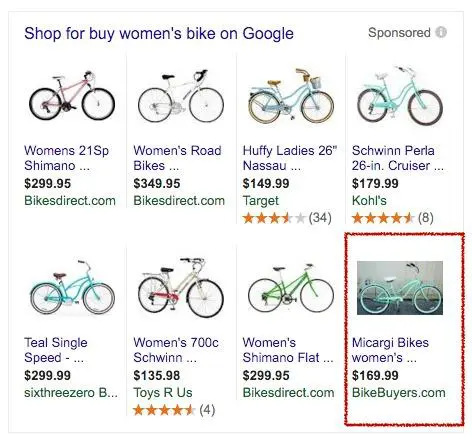
Although white background images are recommended for Google Shopping ads, images with backgrounds can also be worth testing. In the example below, the ad with a background image stands out more than others. You can test both white-background and background images to check their effectiveness.
7. Optimize Product Review Display
Google allows the display of product ratings and the number of reviews on Google Shopping ads. This star rating will be compiled by Google from multiple sources, such as your website, user reviews, or third-party sources.
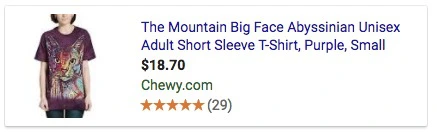
Google Shopping ads allow the display of star ratings and the number of votes.
This star rating not only makes the ads stand out but also builds trust for customers when they click on the ad to purchase the product.
To display star ratings on Google Shopping ads, there must be at least 3 reviews for each product and a minimum of 50 reviews across all products.
How to Increase Product Reviews on Your Website:
After customers make a purchase on your website, you can send an email inviting them to rate the products they bought. To encourage customers to leave reviews, you can offer a small free gift, a discount code, or loyalty points.
8. Break Down Advertising Campaigns into Groups Based on Performance
Google Shopping allows you to bid on specific products instead of bidding on keywords. Therefore, the best way to optimize a Google Shopping campaign is to categorize your products into product groups.
Product groups allow you to separate your products into related categories, similar to how you categorize products on your website. This will help you optimize your advertising costs by setting different bids for each product group based on the performance and profitability of each group.
The ROI (Return on Investment) of each product is the basis for classifying and bidding for product groups.
Besides ROI, you can also combine Google Analytics data to identify best-selling products, then add these products to a specific ad group and increase the bid to improve the visibility of popular and profitable products.
In an ad group, if you notice that some products are underperforming, remove them from that ad group and add them to another group with a lower bid.
How to Categorize Products Based on Performance:
-
In your Google AdWords account, go to the “Products” tab.
-
Choose products that perform well/poorly, then separate them into distinct ad groups.
-
Set different bids for ad groups based on performance.
-
Set display priority for the appropriate ad groups.
See more products: Buy advertising accounts
9. Implement Remarketing Campaigns
Remarketing ads (RLSAs – Remarketing Lists for Search Ads) help you capture customers who visited your website but didn’t make a purchase, improving ad conversion.
This is when you send a message to Google Shopping saying, “A potential customer visited my ad, looked at my product, and visited my website, but the timing wasn’t right. One day, they search for that product again on Google, and I want to bid more for such customers to increase the conversion rate.” Google Shopping offers remarketing lists like this.
For the first time, remarketing ads appear in image format. You can also use remarketing for ads that accompany search results. As far as I know, RLSA is currently in a testing phase, and to take advantage of it, you need to call Google AdWords support at 866-246-6453 to register.
To enable remarketing, you need to add a remarketing tag to your website or use Google Analytics. Don’t forget to update your tracking code.
After registering and enabling remarketing, you can create lists in your shared library. A list is essentially a collection of visitors to your website who meet specific criteria. Then, you can advertise to these lists in different ways if you choose. I recommend you create the following lists:
-
All Visitors – A list of people who have previously visited your website.
-
Cart Abandoners – People who added products to their cart but didn’t complete the checkout process.
-
Product Viewers – People who visited your product pages.
-
Previous Customers – People who have made a purchase before.
9.1. Customer Match Data Files
This is how Customer Match Lists work – the customer match data file allows you to target your customers with ads.
This type of list lets you upload a customer email list to Google, then target these customers in various ways across multiple channels, including Google search, display, YouTube, and Google Shopping.
This list is especially useful for targeting customers who have purchased before but may be searching for a product you also sell that they didn’t know about. Or they may want to buy something else from you but can’t remember your domain or brand.
9.2. Similar Custom Audiences
These are great data files for your marketing campaigns, provided by Google. This list is recommended by Google based on user behavior across the internet, such as habits, interests, and preferences, which closely match your remarketing customer list.
I suggest you bid slightly higher for this group, as they could bring unexpected profits that you can’t even imagine.
9.3. YouTube Channel Subscription List
If you have any video content on YouTube, you might consider using a YouTube list to target viewers. You should target users who are subscribed to your YouTube channel or those who have watched a specific video on your channel.
Dynamic Product Ads on Website
You can create custom image ads or dynamic product ads to target non-converting visitors on your website who came from Google Shopping ads. Image ads are the best choice for remarketing because they display the products the users previously viewed.
Remarketing campaigns targeting customers who have visited your website from Google Shopping ads are showing a very high return on ad spend (around 16-34 times). If your ad budget is limited, this is one of the most cost-effective marketing methods that still delivers great results.
The above are 8 ways to optimize Google Shopping ads that you can apply immediately to your advertising campaigns and measure their effectiveness.
If you need the most reputable payment method and advertising account provider, you can message the fanpage buybm365.com-Ads to receive advice from HT Media. In addition, you can follow the articles. Latest articles related to our Digital Marketing.





