


7 effective ways to create custom audiences on Facebook when setting up ads
Running Facebook ads is one of the highly effective methods adopted by many businesses. However, to have a successful ad campaign that reaches a larger number of potential customers, you need to create a custom audience. In this article, we will guide you through 7 simple and effective ways to create custom audiences on Facebook.
What is a Custom Audience on Facebook?
To run Facebook ads effectively, you need to create and select a suitable custom audience. A Custom Audience is an ad targeting option that allows you to reach users who are already engaged with your business or have specific characteristics based on Facebook and Meta’s platform technology.
When running ads, advertisers can create custom audiences from lists of customers who have interacted with the business, such as customer lists, website traffic, app usage, or Facebook interactions. Each Facebook ad account can create up to 500 audience groups.
Benefits of Creating Custom Audiences for Facebook Ads
To run Facebook ads effectively, you need to select a custom audience that aligns with your campaign goals. Below are the benefits of creating custom audiences on Facebook:
1. Retargeting Potential Customers
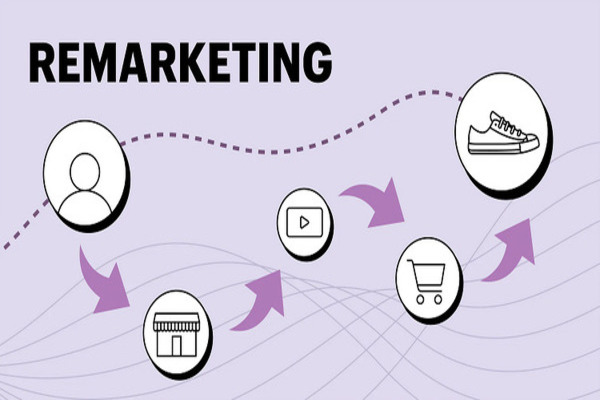
Creating a custom audience on Facebook helps advertisers and businesses retarget potential customers. These are users who have shown interest in the products or have added items to their shopping cart. Advertising to these custom audiences encourages and pushes consumers to take the final step and make a purchase.
 See more products: Buy advertising accounts
2. Increase Conversion Rates
The existing customer base consists of people who already know and have purchased products from your brand. Therefore, targeting these customers will yield higher conversion rates compared to reaching a completely new customer base. This is a significant advantage when running ads with a custom audience of existing customers. Using this method, you can “invite” old customers to make a purchase at your store, offer special deals, or notify them of major events.
3. Increase Engagement on the App
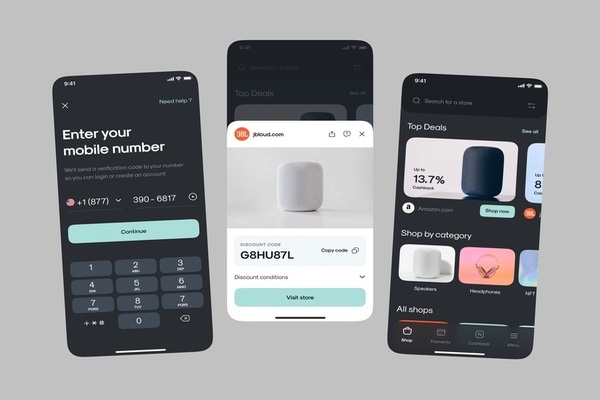
For campaigns that aim to boost app engagement, ads will not be shown to users who have not downloaded the app. If advertisers are not careful, this can lead to targeting the wrong potential customers and result in significant losses for the company. Therefore, using a custom audience on Facebook, which targets users who have already downloaded the app, ensures that your ads are effectively targeted, optimizing your budget and achieving campaign goals.
4. Increase Followers on Facebook
Every fan page has a certain number of followers, and these are users who are already familiar with your brand, so advertising to them might seem unnecessary. Running Facebook ads using a custom audience based on website visits or customer lists ensures that people who have already liked your page are excluded from the targeting. This way, you don’t need to spend extra money on reaching your existing followers and can focus on finding new customers.
5. Use Lookalike Audiences
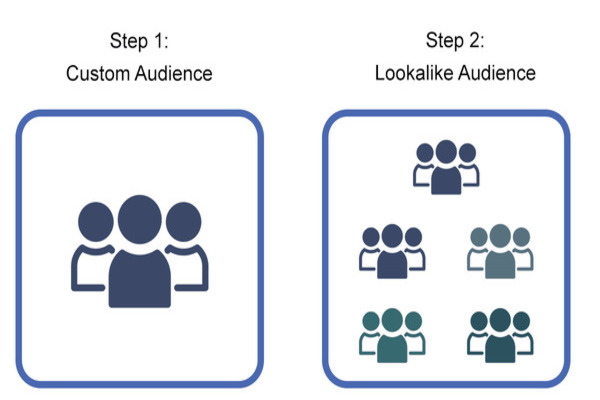
Lookalike audiences are an easy way for advertisers to reach new customers who are likely to be interested in their business because they share similar characteristics with current customers.
When creating a Lookalike audience, advertisers choose a Custom Audience created from their fan page or information collected via Facebook pixel or mobile apps. Facebook will analyze common traits among these users, such as demographics and interests, and then distribute ads to the Lookalike audience.
In other words, if you want to run a Lookalike audience campaign, your initial custom audience must be high quality. If your original audience consists of users who are not interested, the Lookalike audience will also likely show low interest.
Currently, even if you do not have the minimum number of contacts (1000 leads), you can still create a Lookalike Audience when running ads on Facebook.
7 Simple Ways to Create Custom Audiences
Here are 7 basic ways to create custom audiences on Facebook for an effective campaign. Facebook Ads users should save these steps:
1. Create a Custom Audience via Website
Creating a custom audience from your website is the foundation for all retargeting ads when you visit a website and helps advertisers target their ads to customers. This method is suitable for businesses with a strong website presence and a solid reputation in the market.
To create a custom audience from your website, follow these steps:
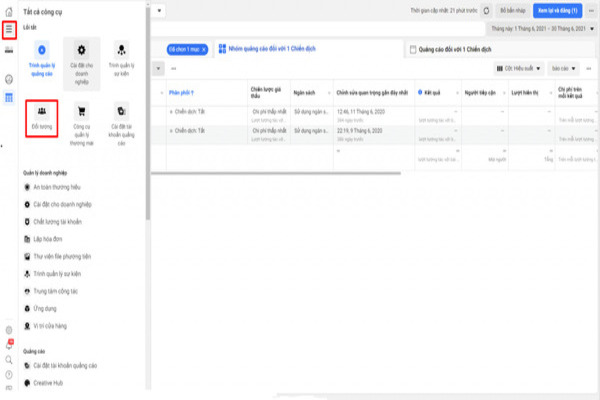
Step 1: Select “Audiences” in the Ads Manager. If you already have a custom audience, click “Create Audience” and then select “Custom Audience”. If you don’t have any, you’ll need to create one first.
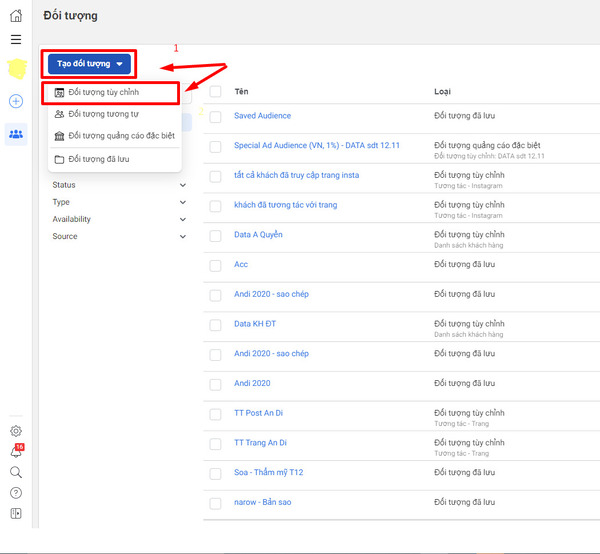
Step 2: Click on “Website”.
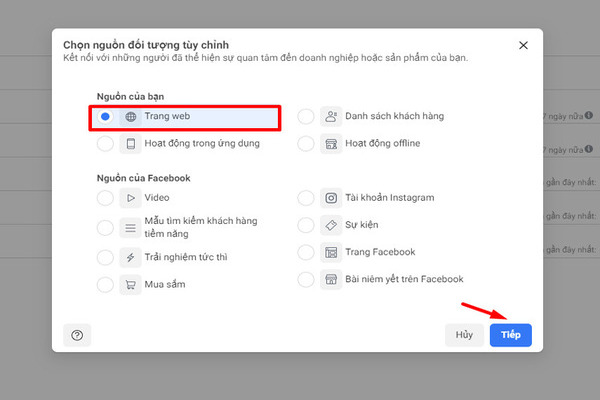
Step 3: Choose the type of customer who has visited your website, including criteria like “People who have visited the website” or “People who visited a specific webpage”.
Step 4: Name your custom audience. You should establish a naming convention to easily find the information later.
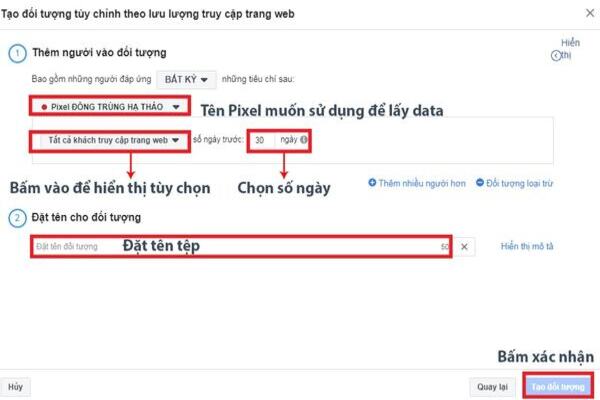
Step 5: After setting up all the requirements, click “Create Audience” to complete the process.
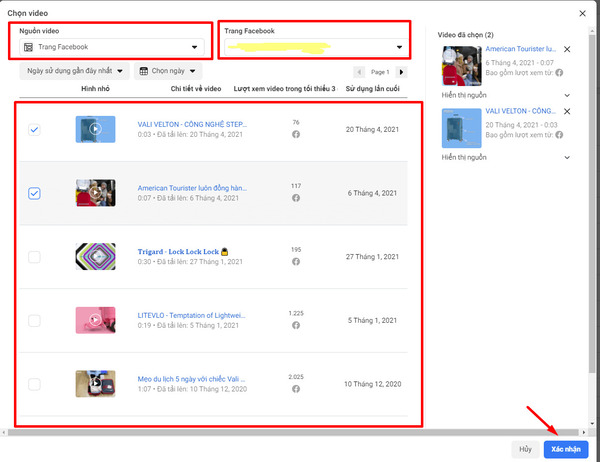
2. Create a Custom Audience via Video Views
Creating a custom audience through video views targets younger customers who are interested in fresh, creative content. This method allows you to use videos directly from posts or upload your own video. If you use an existing video, the audience size will match the number of views from the post. However, if the advertiser uploads a video, the audience size will be larger, matching the number of people who have seen the ad.
To create a custom audience on Facebook via video views, follow these steps:
Step 1: In the Ads Manager, select Audiences => Create Audience => Custom Audience.
Step 2: Choose the source as “Video”.
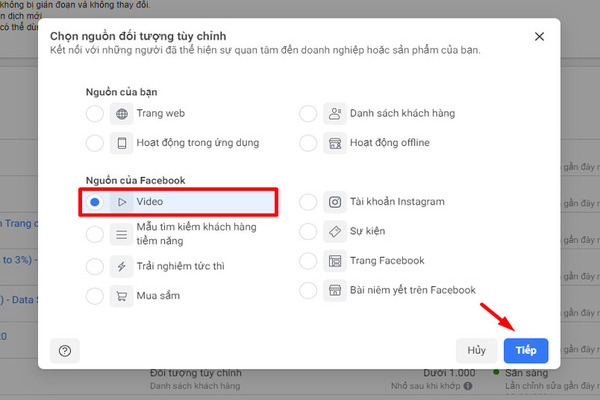
Step 3: Select the video that matches your campaign and adjust it according to your requirements. The video must be between 3 to 10 seconds long, or you can choose a longer video depending on your campaign goals.
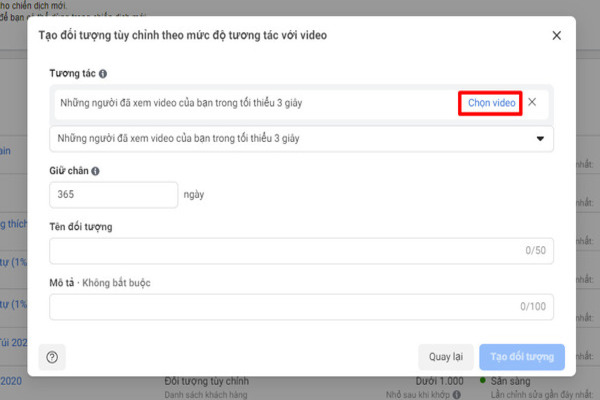
Step 4: After making the video adjustments, enter the audience name, provide a description (fill in the required fields), and click “Create Audience” to complete the process.
3. Create Custom Audiences Based on Facebook Interactions
Creating custom audiences based on Facebook interactions is ideal for businesses running long-term campaigns and requiring a large volume of data. Since the duration for this type of audience extends up to 365 days, even if recent interactions are relatively low, ads can still target the desired customer segment.
Therefore, creating audiences based on Facebook interactions is a common method for running effective ad campaigns. With this feature, you can create audiences from customers who have previously visited or interacted with your Facebook Page. The steps to create this audience are as follows:
Step 1: In the Ads Manager, select “Audiences” → “Create Audience” → “Custom Audience.”
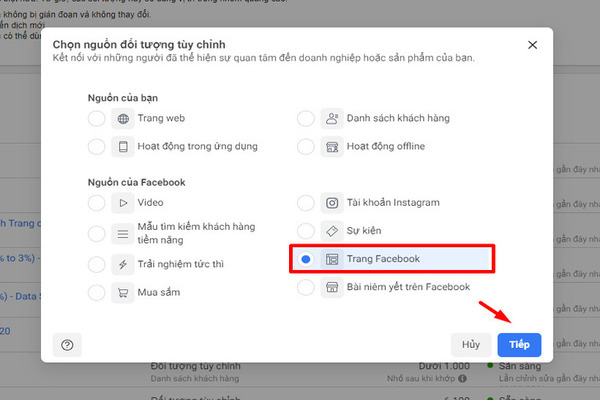
Step 2: Select the source of the audience as “Facebook Page” and click “Next” to proceed with the next steps.
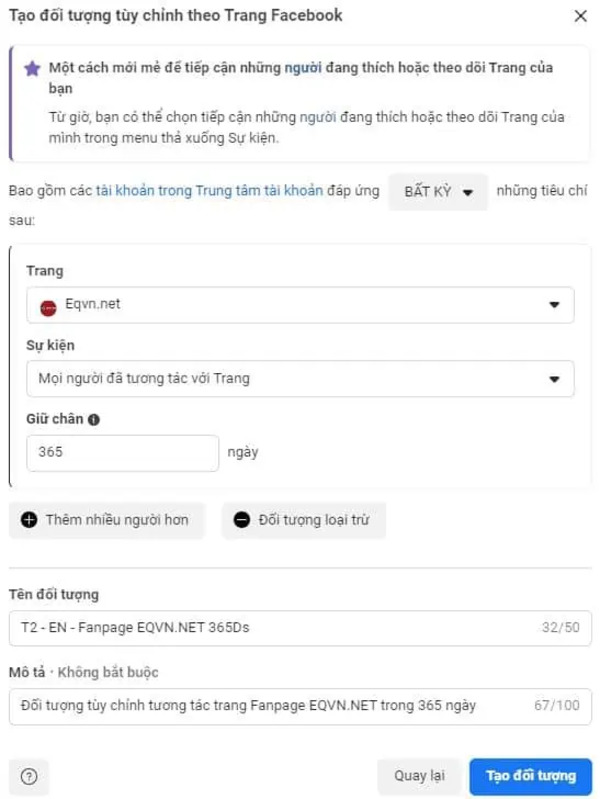
Step 3: A customization panel will appear, where you need to fill out the required details such as the event, retention, audience name, description, etc. To add other audiences, click “Add more people” or “Exclude audience” to prevent targeting those specific customers. You can add up to 5 choices for each audience based on the purpose of the ads.
 See more products: Buy advertising accounts
Step 4: Once you have completed all the details, click “Create Audience” to finish and use the custom audience during the ad set creation.
4. Create Custom Audiences via Lead Form
The lead form targets people who are genuinely interested in your products or services. This audience type lasts for 90 days, meaning that when running ads, the campaign will target people who have interacted with the business in the past 90 days. This ensures that the ads are not diluted and only reach potential buyers.
To create a custom audience via lead forms, follow these steps:
Step 1: Go to “Audiences” in Ads Manager, select “Create Audience” → “Custom Audience.”
Step 2: Select “Lead Form” as the audience source.
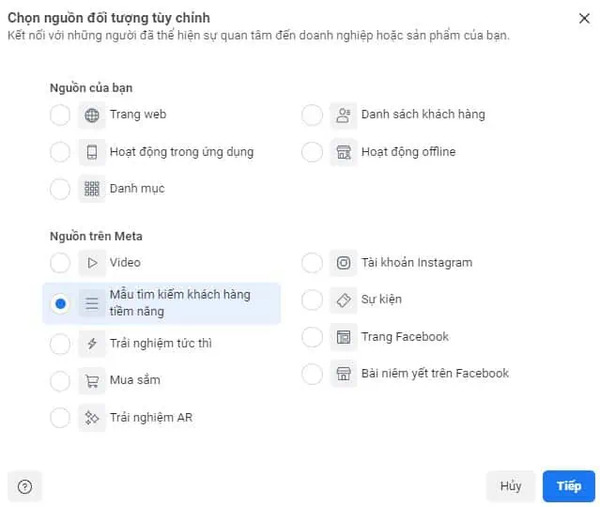
Step 3: In the “Event” section, choose the relevant activity for your campaign goal, such as “Anyone who opened this form,” “People who opened but didn’t complete the form,” or “People who opened and completed the form,” etc. Fill in the required information.
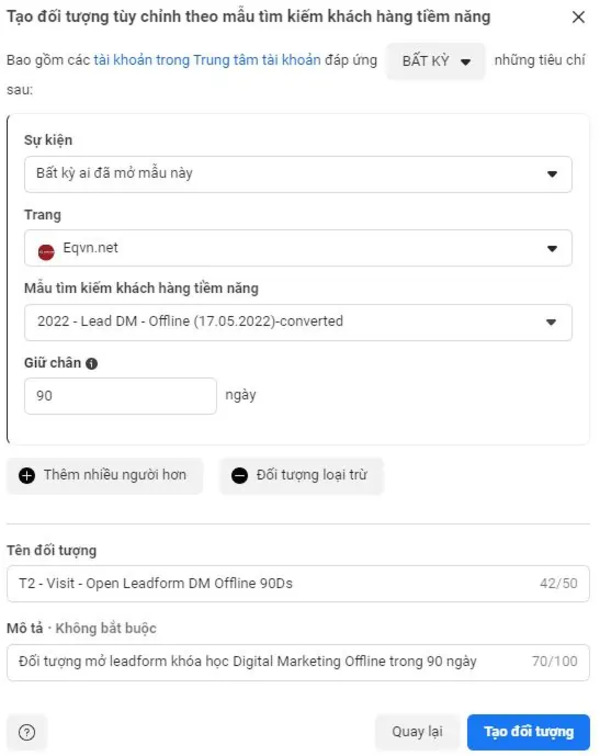
Step 4: Once all information is complete, click “Create Audience.”
5. Create Custom Audiences via Instant Experience
Instant Experience is a feature that allows ads to be optimized for full-screen display when viewed on mobile. This is a good option for businesses that don’t want their products or services to redirect to a separate landing page. To target the correct audience, follow the steps below:
Step 1: Go to “Audiences” in Ads Manager, click “Create Audience” → “Custom Audience.”
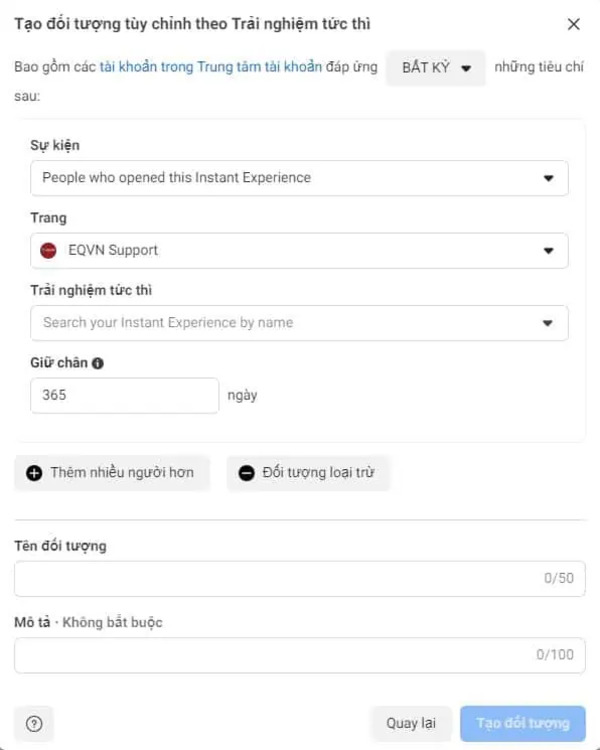
Step 2: Select “Instant Experience” as the audience source.
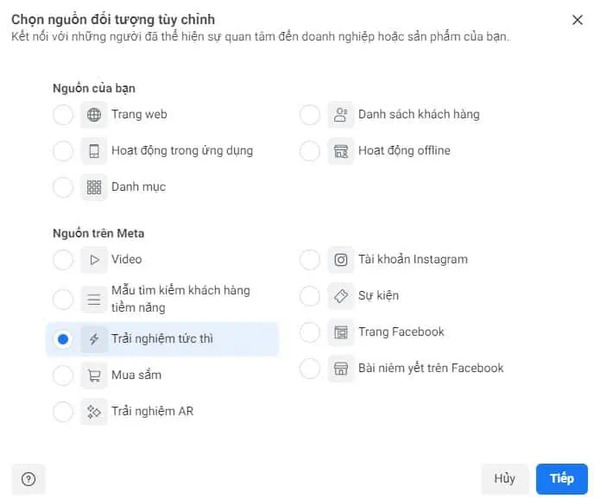
Step 3: In the “Event” section, choose from the options that match your campaign goal, such as “People who opened Instant Experience,” “People who clicked any link in Instant Experience,” and fill out the required information. Finally, click “Create Audience.”
6. Create Custom Audiences Using Customer Lists
A customer list consists of email addresses, phone numbers, or Facebook user IDs, which Facebook will match for you. Facebook usually matches around 60-70% of the contacts in your list, so the more contacts you upload, the better. This method is ideal for remarketing offers, promotions, customer appreciation, and encouraging repeat purchases.
To create a custom audience using a customer list, follow these steps:
Step 1: Go to “Audiences” in Ads Manager, select “Create Audience” → “Custom Audience.”
Step 2: Choose “Customer List” as the audience source and click “Next.”
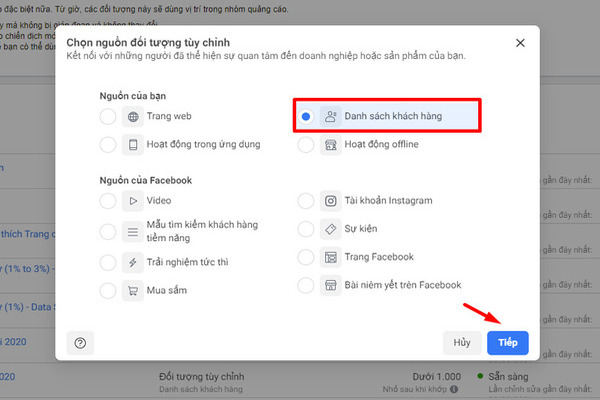
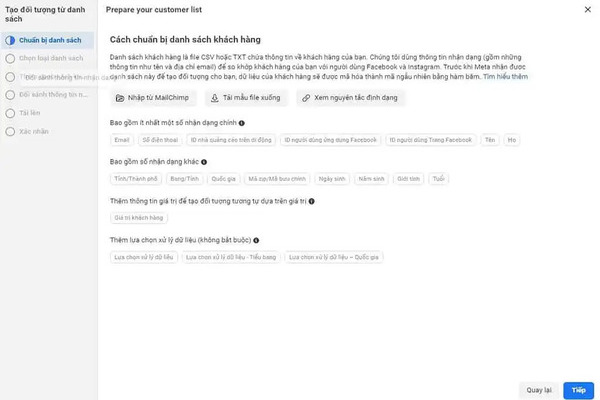
Step 3: A “Create Custom Audience from List” dialog will appear. You can upload your customer list in one of three accepted formats:
-
Upload from MailChimp.
-
Download a sample file, fill it out with customer data, and upload it as a .csv or .txt file.
-
Check the format guidelines and enter data manually as required by Facebook.
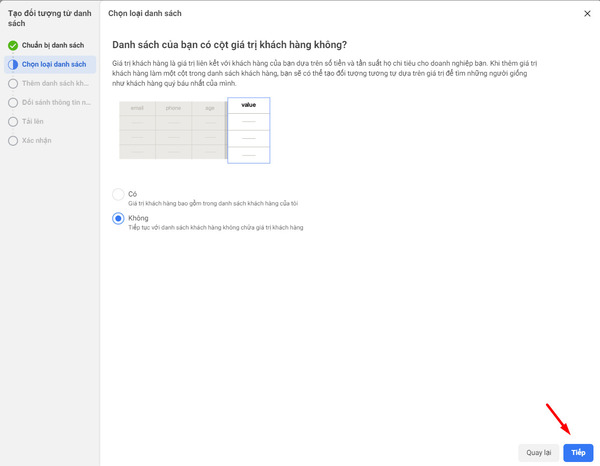
Step 4: Indicate whether your list includes customer value fields. If not, select “No” and click “Next.”
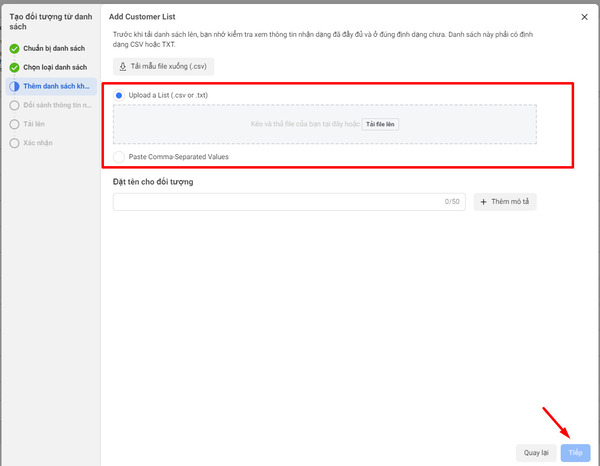
Step 5: Choose your preferred upload method and click “Next.”
Step 6: If you chose “Download Sample File,” add important data to your customer list file. The more detailed the data, the better Facebook will match quality customers. Once you’ve uploaded the file, give it a memorable name to make it easier to search and set up ads later.
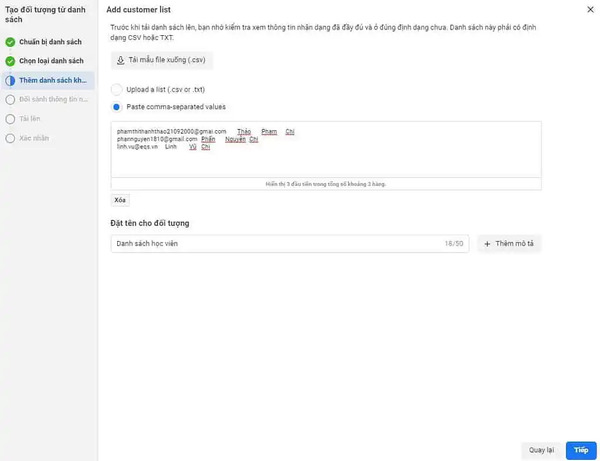
A few key things to keep in mind:
-
The uploaded file must comply with Facebook’s requirements. If not, creating a custom audience will be ineffective.
-
Remember to include the “Country Code” for phone numbers (e.g., +84 for Vietnam). Include a “Country” column in your file.
-
Facebook only accepts files in .CSV or .TXT formats.
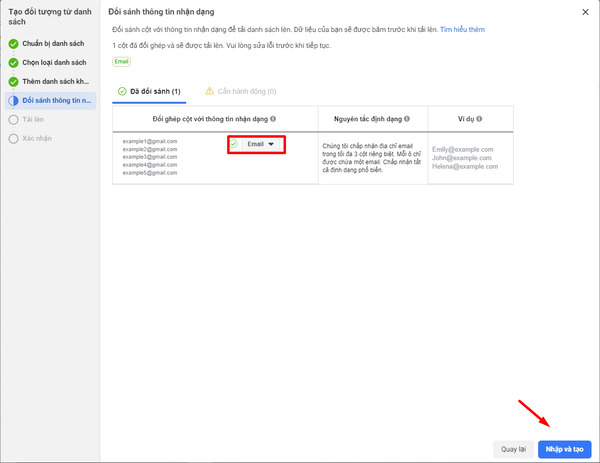
Step 7: Double-check that Facebook recognizes the file you uploaded. If everything looks good, click “Finish Upload” to complete the process.
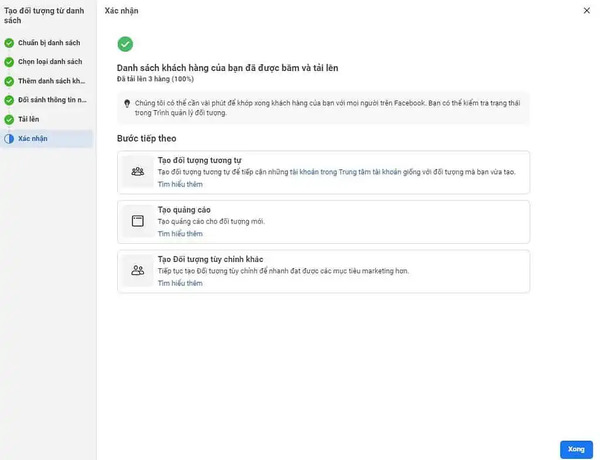 See more products: Buy advertising accounts
Once the upload is complete, the customer list will not be immediately active. You’ll need to wait at least 30 minutes for Facebook to process the data.
7. Create Custom Audiences Based on Store Traffic
Creating an audience based on store visits allows you to target and remarket people who have recently visited your physical store. This method is great for campaigns aimed at increasing in-store sales or promoting events such as workshops or conferences for customers who prefer the in-store shopping experience.
You can only create a custom audience based on offline store traffic if you meet two requirements:
-
Access to the store visit reporting feature.
-
At least 10 measurable stores set up.
Here’s how to create a custom audience based on store traffic:
Step 1: Go to “Audiences” in Ads Manager, click “Create Audience” → “Custom Audience.”
Step 2: Select “Offline Activity” as the audience source and click “Next.”
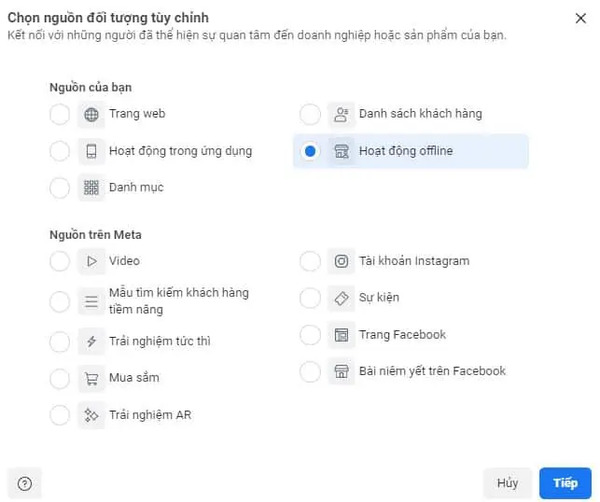
Step 3: The “Create Custom Audience Based on Offline Activity” dialog will appear. In the “Event” section, you can choose options such as:
-
People who interacted offline.
-
People who added products to the cart during the event.
-
People who completed the event registration form.
-
People who interacted with the event.
-
Various other activities.
Step 4: In the “Retention” section, you can only enter a maximum of 180 days due to Facebook’s current limitations for this feature.
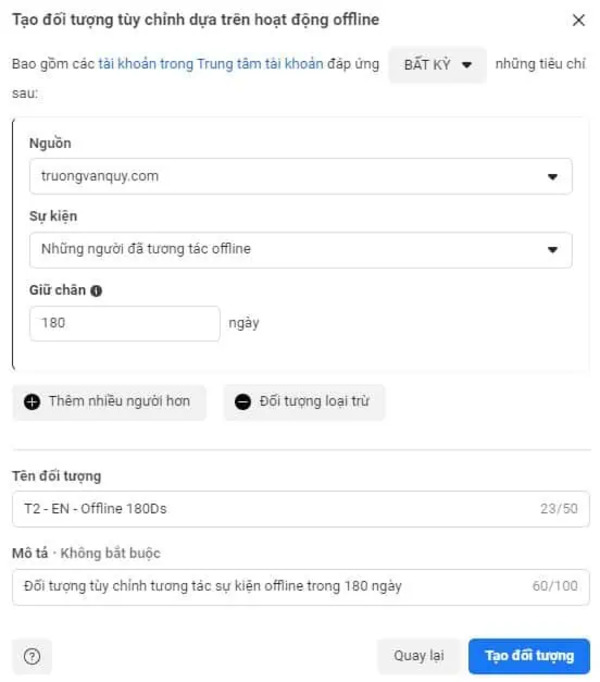
Step 5: Enter the required details for “Audience Name” and “Description.”
Step 6: Click “Create Audience” to finish.
Important Notes about Custom Audiences
Here are some important things to remember when creating custom audiences on Facebook:
-
Creating Custom Audiences for New Business Managers: If you’ve just created a new Business Manager account, you won’t be able to create custom audiences immediately as Facebook hasn’t yet opened this feature for new managers. You may need to wait a few days or up to a week for Facebook to approve it.
-
Processing Time for Data: After uploading your data file, Facebook needs time to process it, usually about 30 minutes to an hour. Don’t start running ads immediately after uploading the data.
-
Minimum Number of Contacts for Custom Audiences: Facebook requires a minimum of 1,000 contacts in your uploaded list to create a custom audience. However, for an effective campaign, it’s best to upload as many contacts as possible, ideally around 10,000. Since Facebook may not match every contact, the more data you upload, the better.
-
Dealing with Too Few Customers: If you’re just starting out and don’t have customer data to upload, you can try using Facebook’s data scraping tools or other methods to build a data set.
Creating custom audiences on Facebook isn’t difficult if you follow the above guidelines. It is crucial for managing your ad campaigns effectively, optimizing budget distribution, and achieving your campaign objectives. Stay tuned for more helpful tips!
If you need the most reputable payment method and advertising account provider, you can message the fanpage buybm365.com-Ads to receive advice from HT Media. In addition, you can follow the articles. Latest articles related to our Digital Marketing.





